
This article provides a step-by-step guide to enabling Microsoft as your Identity Provider for 101domain accounts. By following these instructions, you can securely connect your Microsoft account for streamlined single sign-on access.
To use Microsoft as your Identity provider, you must have an existing Microsoft user account issued by your organization or a personal Microsoft account, such as Microsoft 365.
If you want to log in to an existing 101domain account with your Microsoft account, then you must enable this from within your 101domain account first.
Configuration Steps to set up your Microsoft Account
-
Login in to the 101domain account with your existing username and password.
Please note that only the Primary User listed with 101domain can configure SSO. If you are not the primary user, you will need to contact your organization's Primary User to configure the SSO feature following the steps below.
-
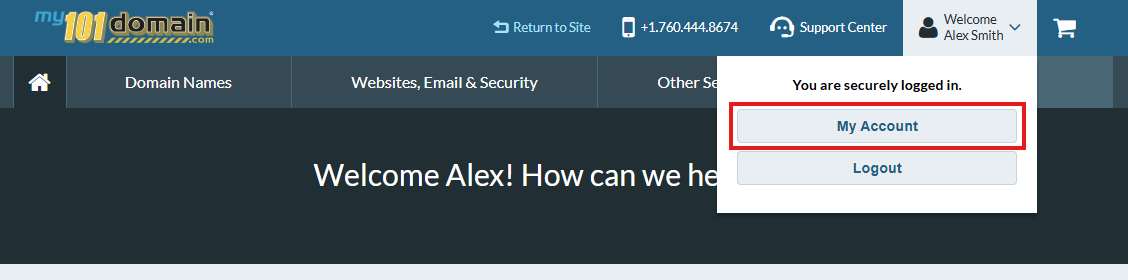
Navigate to the Welcome dropdown menu on the top right hand side and click on My Account .
-
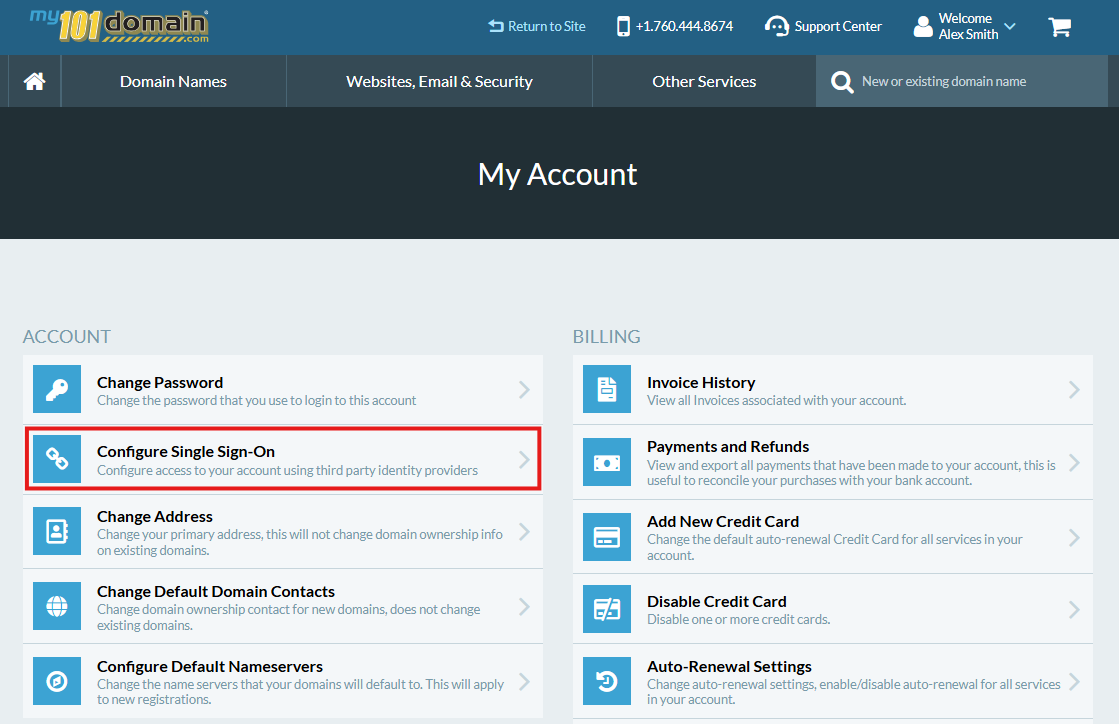
From the My Account menu, click on Configure Single Sign-On
-
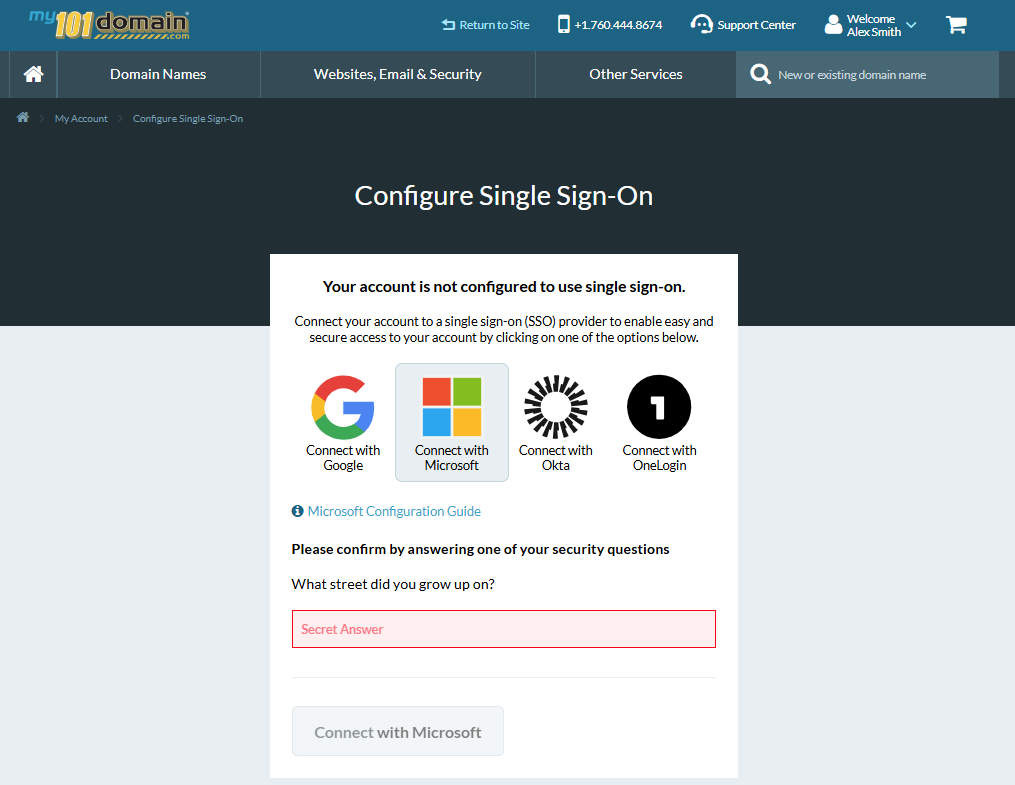
Click on the ‘Connect with Microsoft’ icon and answer the Security Question from your account.
-
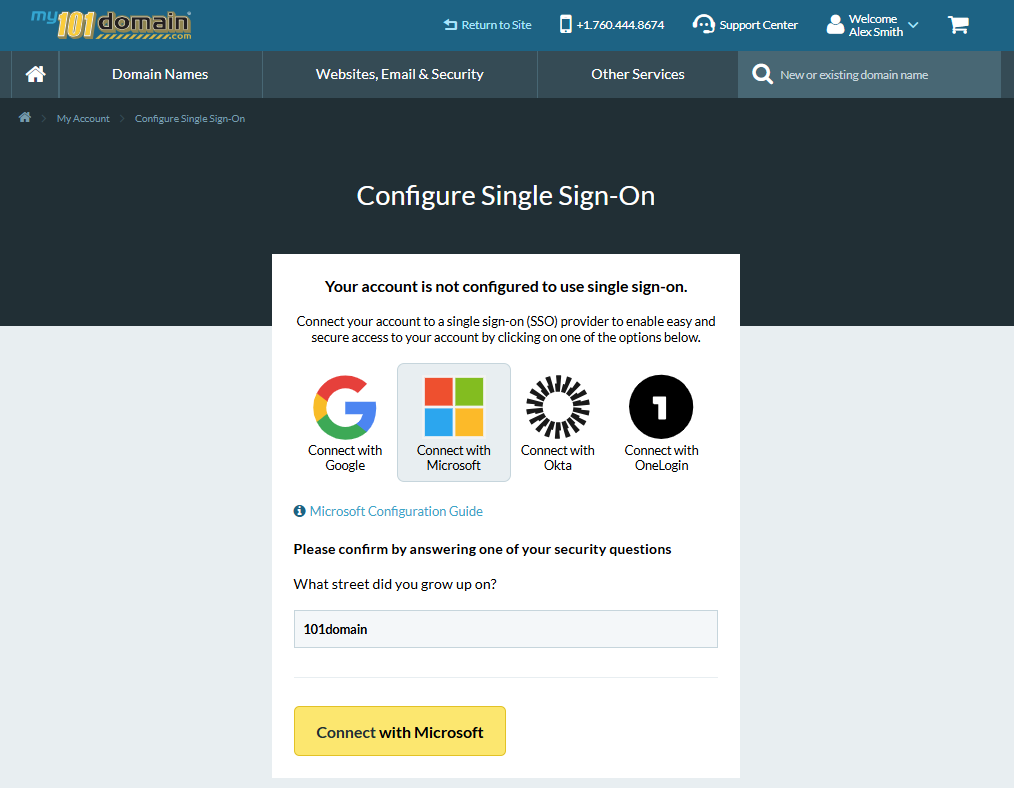
The ‘Connect with Microsoft’ button will change from Grey to Yellow. Click on this button to continue.
-
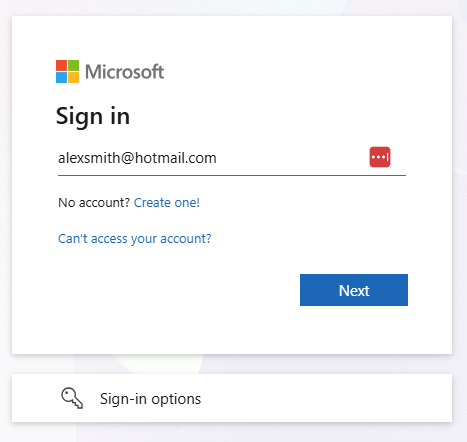
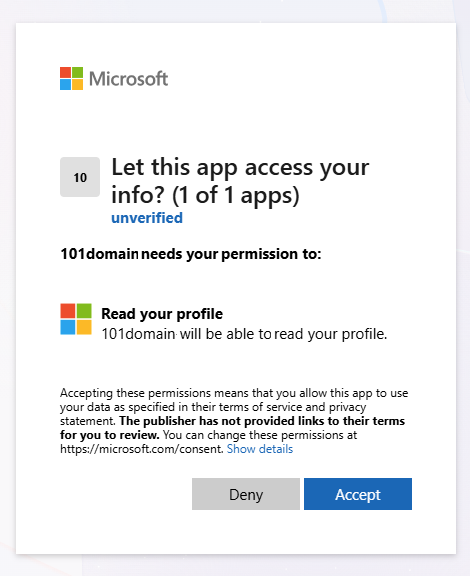
You will then be taken to Microsoft’s login where you can select the Microsoft profile you want to connect to followed by the and consent page. Click on Accept.
If you are already logged into your Microsoft account on your browser, this step may be skipped.
The Primary Account Owner’s email address in the 101domain account must match the Primary Account User’s SSO login email address for configuration. If it does not match, you will receive an error message.
-
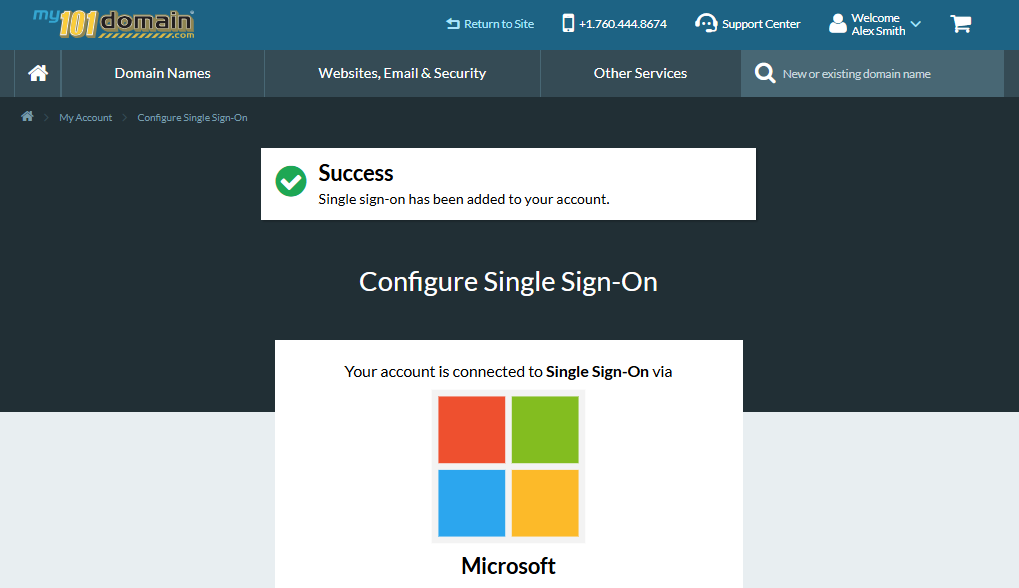
Once successfully connected, you will see a confirmation that the connection was successful and Microsoft SSO is now available.
The Primary User will need to enable any sub-users of the organizations 101domain account to sign in with Microsoft SSO. For more information, visit our article Managing User Access and Enforcement.
Important Notes
-
Each user must be enabled in the 101domain account prior to logging in with Microsoft SSO.
-
The Primary Account owner can allow each user, including themselves, to log in with:
-
Microsoft SSO only, OR
-
either Microsoft SSO or username and password.
-