
To begin the SSO setup process, the Primary Account Holder must logged in to the 101domain account and navigate to the SSO configuration area.
Steps to Access the SSO Configuration Panel
-
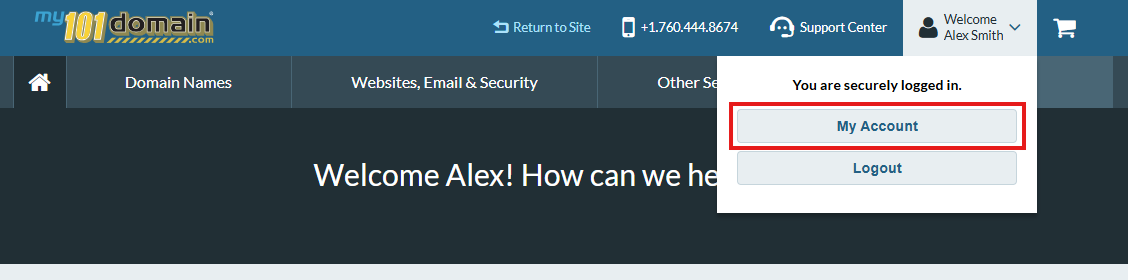
Login in to the 101domain account with your existing username and password.
-
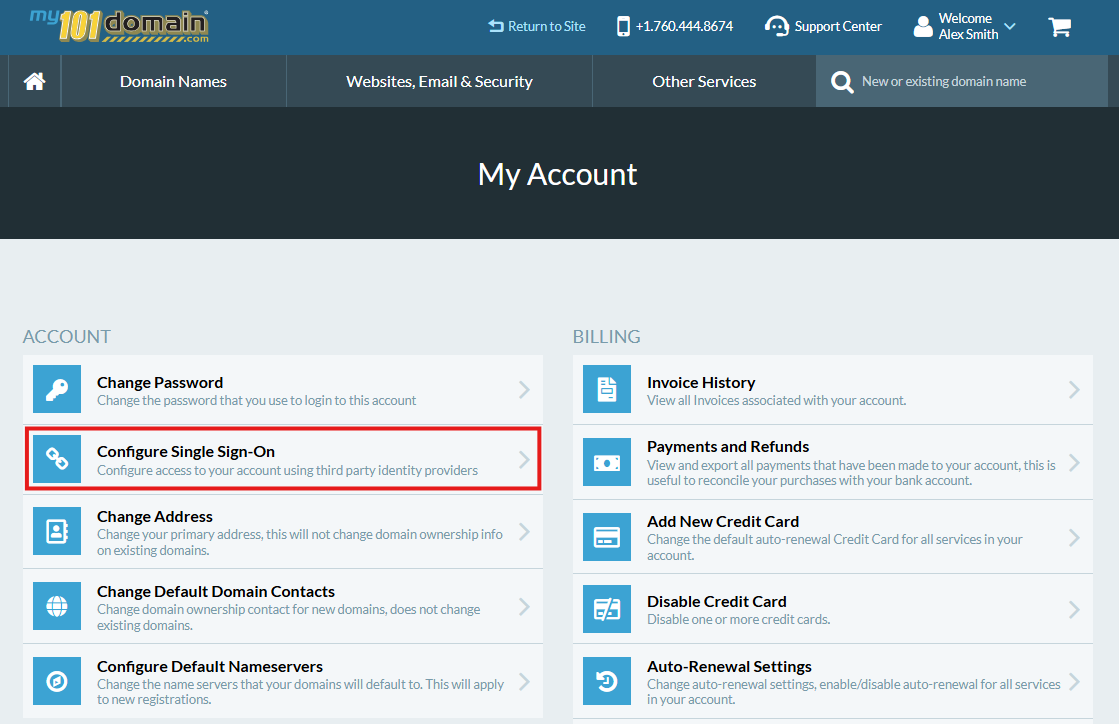
From the My Account menu, click on Configure Single Sign-On
-
This is the SSO Configuration Panel.
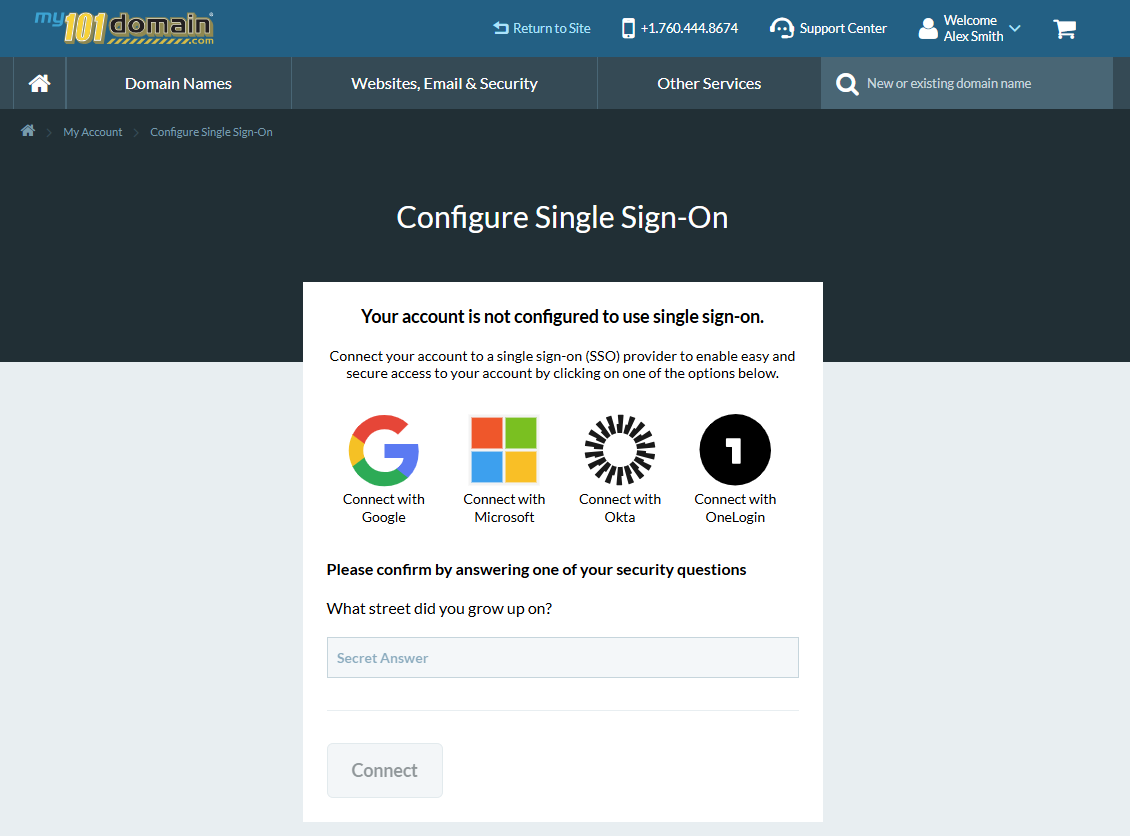
To continue to the next steps of setup, click here to continue:
Prerequisite Check - Email Address Requirement
Before commencing the setup process for SSO, you will need to ensure that:
-
The Primary Account Owner’s email address in the 101domain account must match the Primary Account User’s SSO login email address for configuration.
-
The initial configuration relies on this email address as a core identifier to link your corporate identity to the 101domain account. This is also the case for sub-users.
In 101domain’s system, your login username is not necessarily the same as the email address on your account.
This is common for legacy accounts and accounts where the primary account user has changed in the past.
Checking your Primary Account Email Address
In order to find your primary account email address, follow these steps:
-
Navigate to Welcome drop down in the top right corner and click on My Account .
-
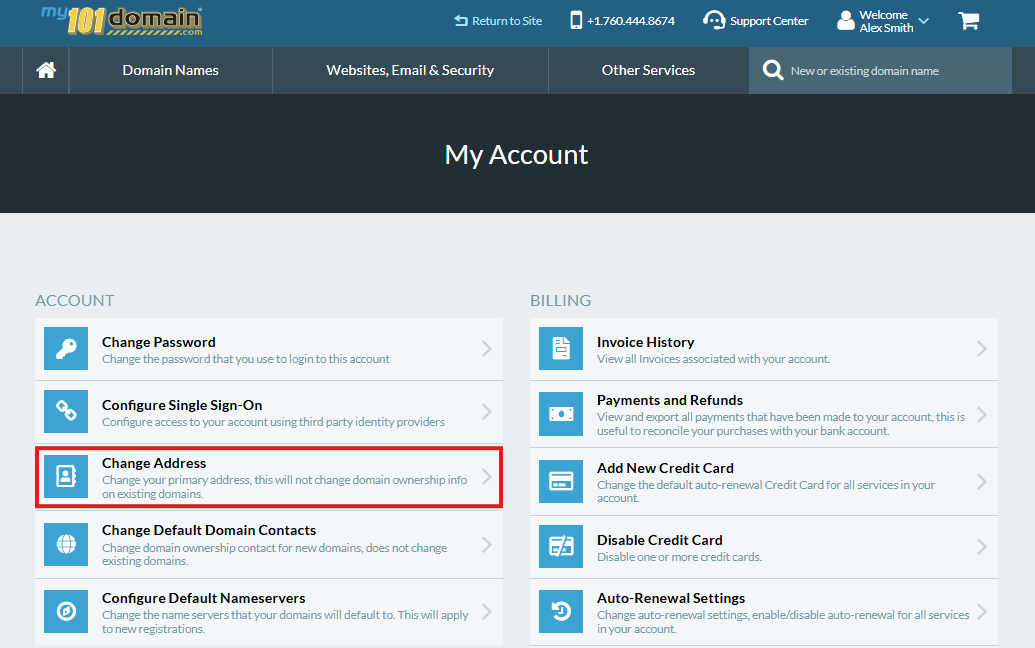
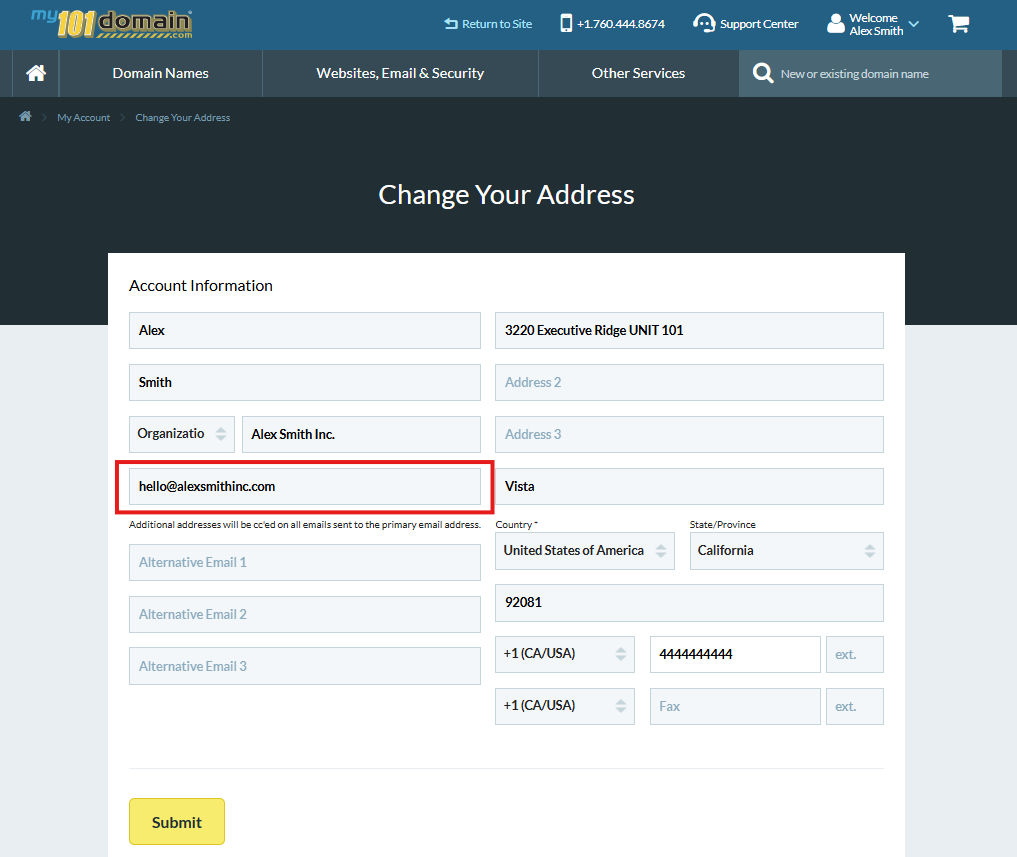
Click on Change Address
-
This screen will show you where you can view your current email address.
If you need to change your username, please follow the steps in our article Changing Account Username.