
As the Primary Account Owner (PAO), you can review the status and configuration settings for all sub-users in your account. This visibility helps you troubleshoot login issues and manage user access effectively.
The PAO can view these settings in the user list in their account, but they must click into the specific sub-user configuration page to make any changes.
Steps for Viewing Sub-User SSO Status
-
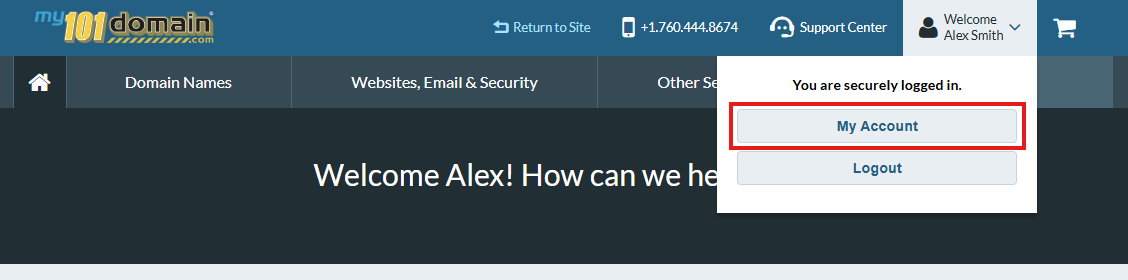
Navigate to the Welcome dropdown menu on the top right hand side and click on My Account .
-
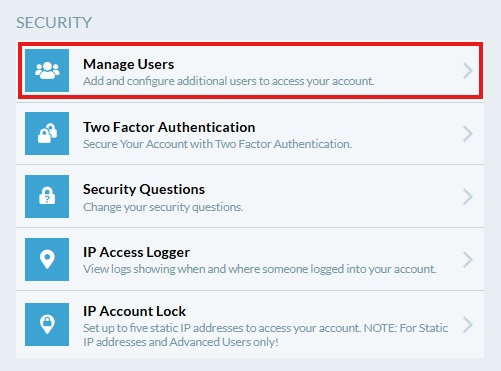
In My Account, scroll down to Security and click on Manage Users.
-
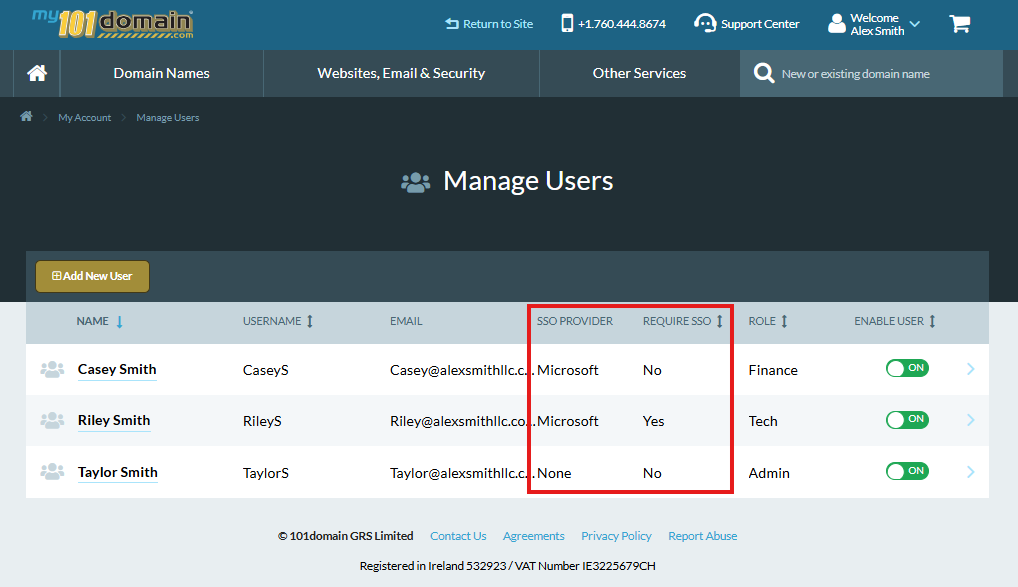
Manage Users provides an overview of all sub-users, including the Single Sign-On (SSO) Provider allocated and if the sub-user has been set to Require SSO.
-
To make changes to a sub-user’s configuration, click on the specific sub-user’s name to access their settings page.
SSO Columns Explained
|
Column Name |
Displayed Value |
Interpretation for PAO |
|
Single Sign-On Provider |
Google, Microsoft, Okta or OneLogin. |
Identifies the specific Identity Provider linked to this user's account. |
|
Require SSO |
Yes / No |
Yes: The user’s account enforces Require SSO only access, meaning the user’s authentication relies strictly on the IdP directory status. |
Related Articles: