
When a sub-user attempts to log in using Google or Microsoft Single Sign-On (SSO) before their account has been configured by the primary account owner, a new, empty account may be created by mistake. This article explains how to resolve this issue and ensure the sub-user is correctly linked to your organization’s account.
Problem: A Sub-User attempted to log in with SSO and created a new, empty account by mistake.
If a sub-user logs in with SSO before their account is set up by the primary account owner, they may accidentally create a separate, empty account. Follow the steps below to disconnect the incorrect SSO connection and properly enable SSO access for the sub-user.
Steps to Resolve the Issue
1. Sub-user steps: Disconnect SSO from the New, Empty Account.
-
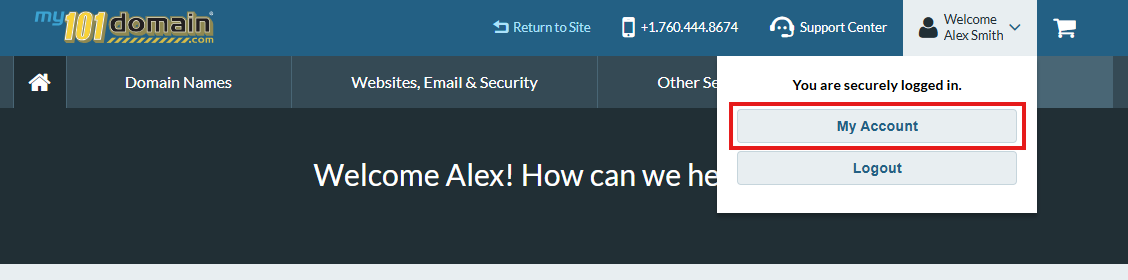
The sub-user will need to navigate to the Welcome dropdown menu on the top right hand side and click on My Account.
-
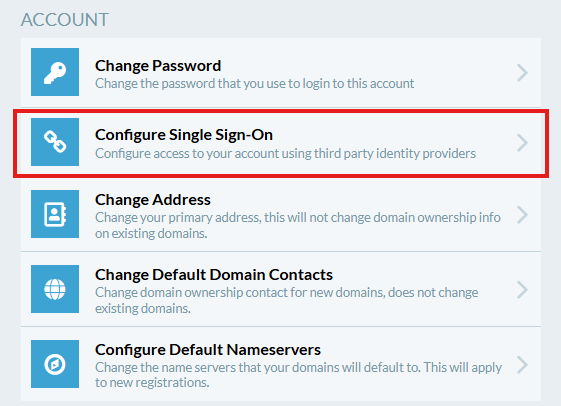
Scroll down to the Security section and click on Configure Single Sign-On.
-
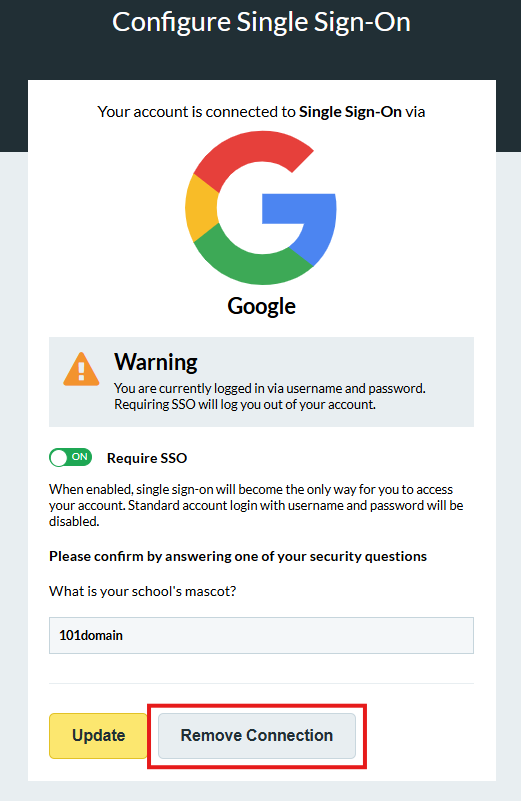
Select Remove Connection next to the connected SSO provider.
2. Primary Account Owner steps: Enable SSO for the Sub-User.
-
The Primary Account Owner will then need to login and navigate to My Account.
-
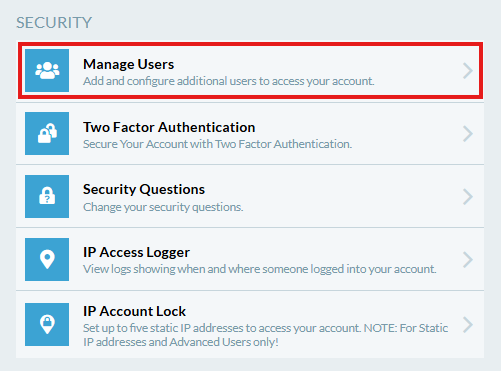
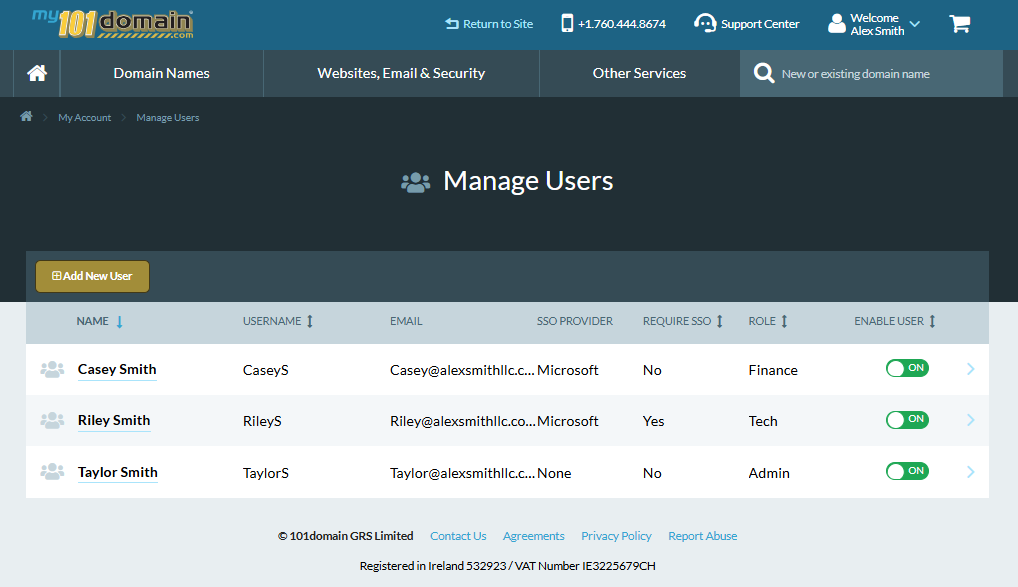
From the Security section, click on Manage Users.
-
From the list of users, navigate to the relevant sub-users name and click on their name.
-
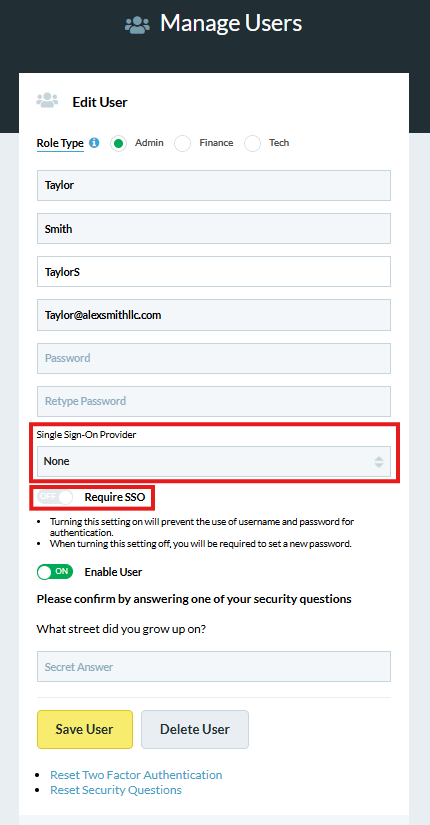
Click on the Single Sign-On Provider dropdown and select the relevant provider from the list.
Optional: If the organization requires SSO Only for login, toggle the Require SSO button to ON.
3. Sub-user steps: Log In Again with SSO.
The sub-user can now log in using SSO and will be routed correctly to the organizational account.
Visit our article Provisioning and Deprovisioning SSO for further information.