
This article explains how to enable Single Sign-On (SSO) for existing sub-users in your 101domain account. Linking sub-users to your organization’s identity provider (IdP) allows them to access their accounts using their corporate credentials, while preserving their current roles and permissions.
Follow the process below to ensure a secure and seamless login experience for your team.
Steps for Enabling Existing Sub-User accounts with SSO
-
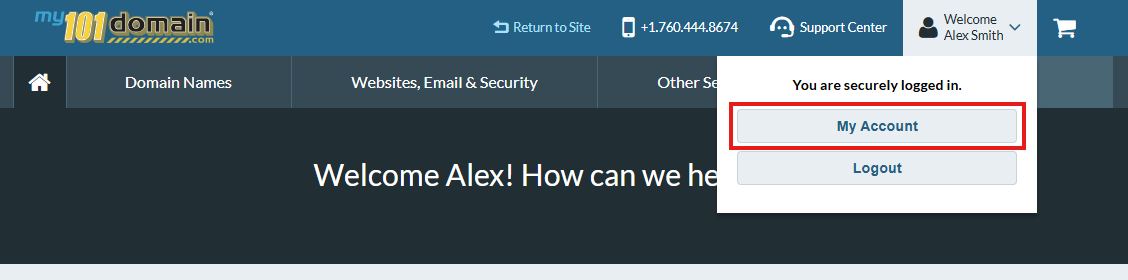
Navigate to the Welcome dropdown menu on the top right hand side and click on My Account .
-
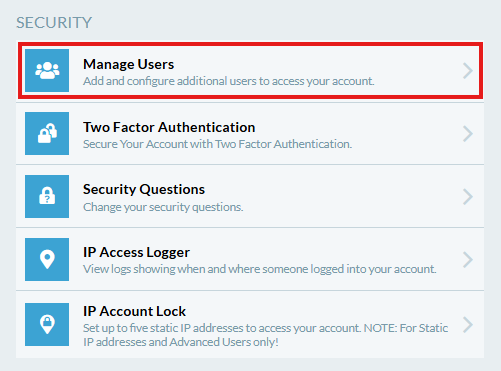
In My Account, scroll down to Security and click on Manage Users.
-
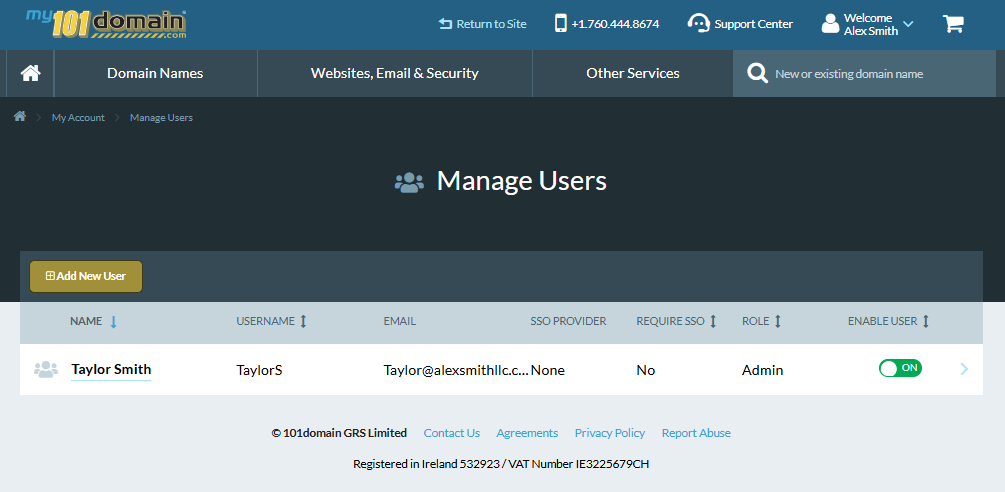
Select the sub-user you want to modify. You can either:
-
Click on the sub-users name; or
-
Click on the arrow on the right hand side of the row record.
-
-
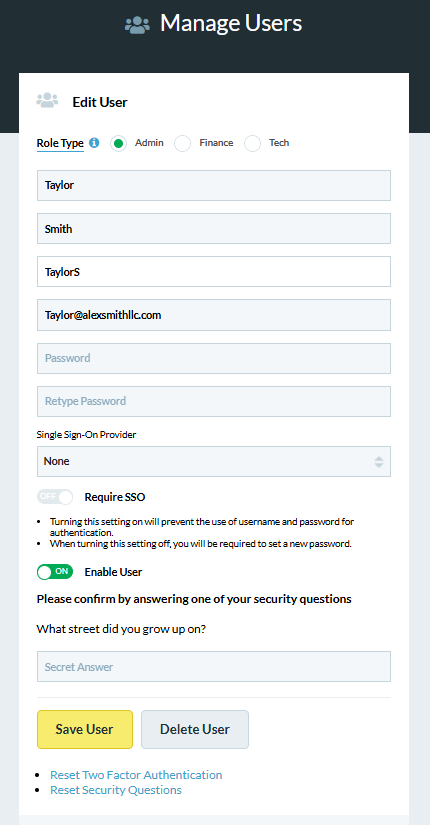
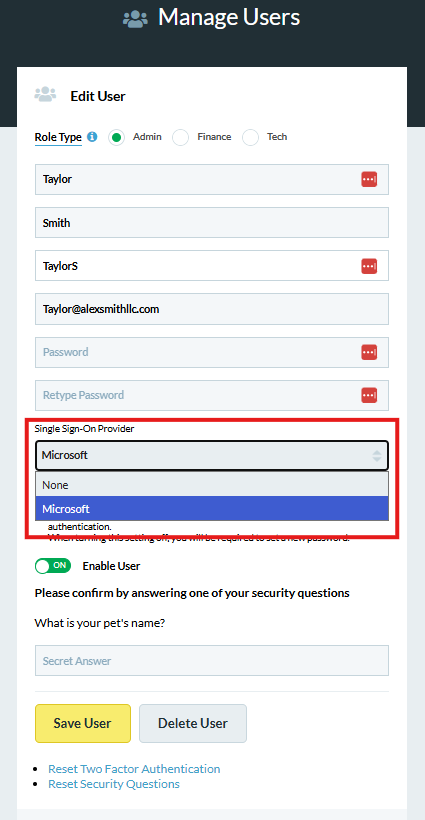
On the configuration page, update the authentication settings as needed.
-
The configured IdP will appear in the Single Sign-On Provider drop-down menu.
-
-
Click on Save User.
After these steps, the sub-user can log in using your organization’s IdP. Upon their first successful SSO login, their corporate identity is linked to their 101domain sub-user account, preserving their existing roles and permissions.
The sub-user’s email address must match the email address used for their SSO profile.
For Google and Microsoft SSO, if a sub-user attempts to log in with SSO and their email address does not exist in your account, a new, unrelated 101domain account will be created for them.