
If you accidentally connected the wrong Google account (such as a personal or incorrect organizational account) to Single Sign-On (SSO) in your 101domain account, you will need to disconnect it and clear your browser data before reconnecting the correct account.
Follow the steps below to resolve this issue.
Steps to Fix an Incorrect Google Account Connection
If you are already logged into your account, skip ahead to Step 2.
-
Login in to the 101domain account using the incorrect SSO credentials.
-
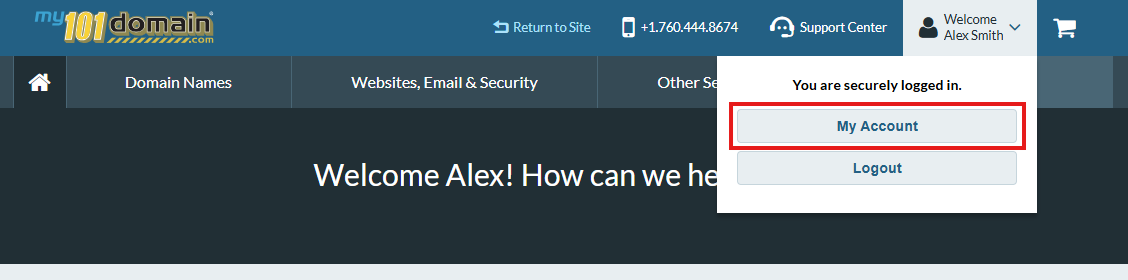
Navigate to the Welcome dropdown menu on the top right hand side and click on My Account.
-
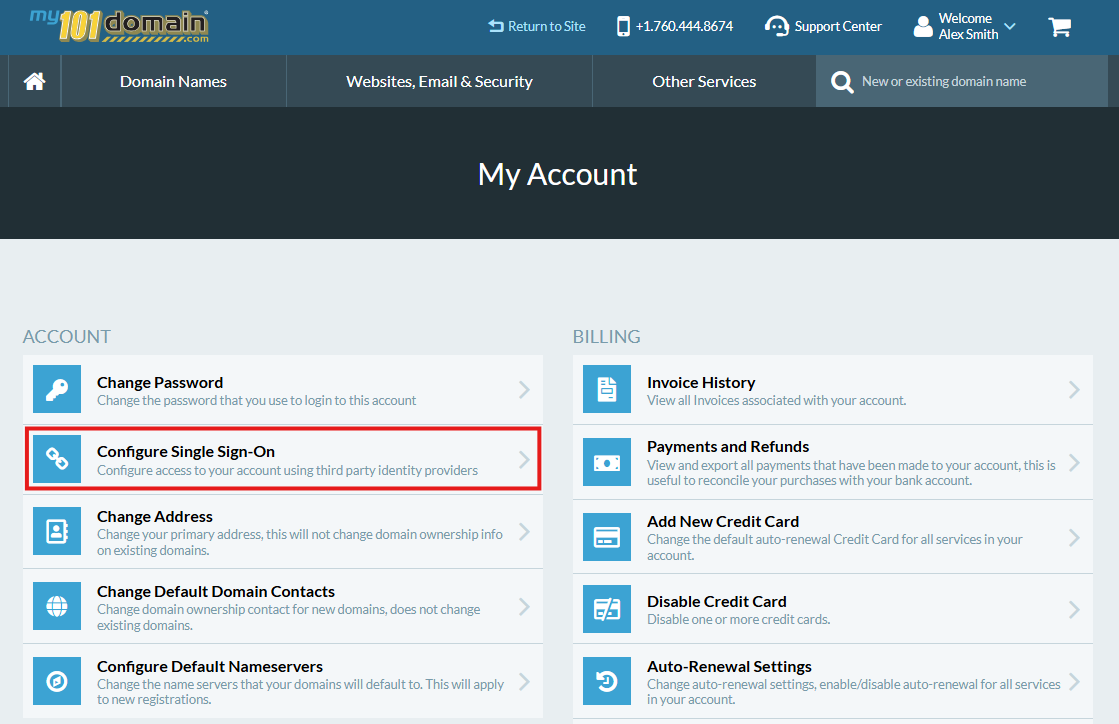
Click to Configure Single-Sign-On
-
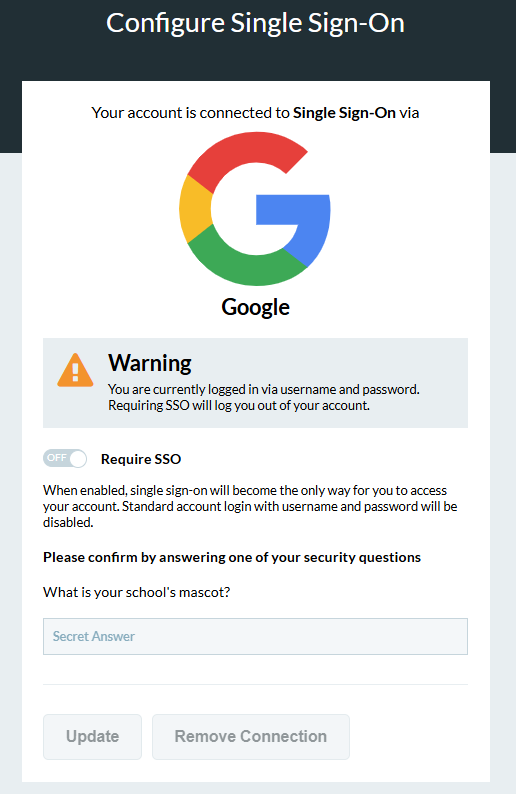
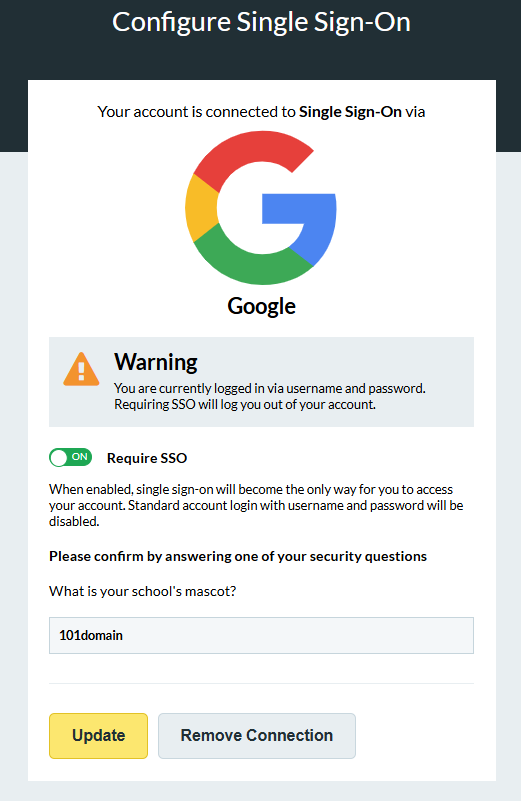
Enter your ‘Secret Answer’ and click on the 'Remove Connection' button.
-
Open your browser settings and locate the option for managing third-party cookies.
This is typically found under Settings > Privacy & Security > Cookies and other site data > See all site data and permissions.
-
Find Google as your Identity Provider (IdP) from the list and delete the associated cookies.
-
Return to the Configure Single Sign-On page in your 101domain account. Start the connection process again, this time selecting the correct Google account when prompted.
You should now see the consent screen allowing you to choose the correct account.
If you continue to see the wrong account, try restarting your browser or using an incognito/private browsing window to ensure no cached data interferes with the process.