
This article provides step-by-step instructions for fully disconnecting users and accounts from your Identity Provider (IdP) and Single Sign-On (SSO) integration. It outlines the necessary actions to disable SSO access for both primary account users and sub-users, ensuring you can manage account security and access as organizational needs change.
There are two steps to completely disconnect SSO from your account and sub-user accounts.
Steps to Disconnect SSO for the Primary Account User
If you would like to disable the Primary Account User from logging in with SSO (for example, if your primary account user leaves your company), the Primary Account User must disconnect the account from your Identity Provider.
-
Login in to the 101domain account as the Primary Account User.
-
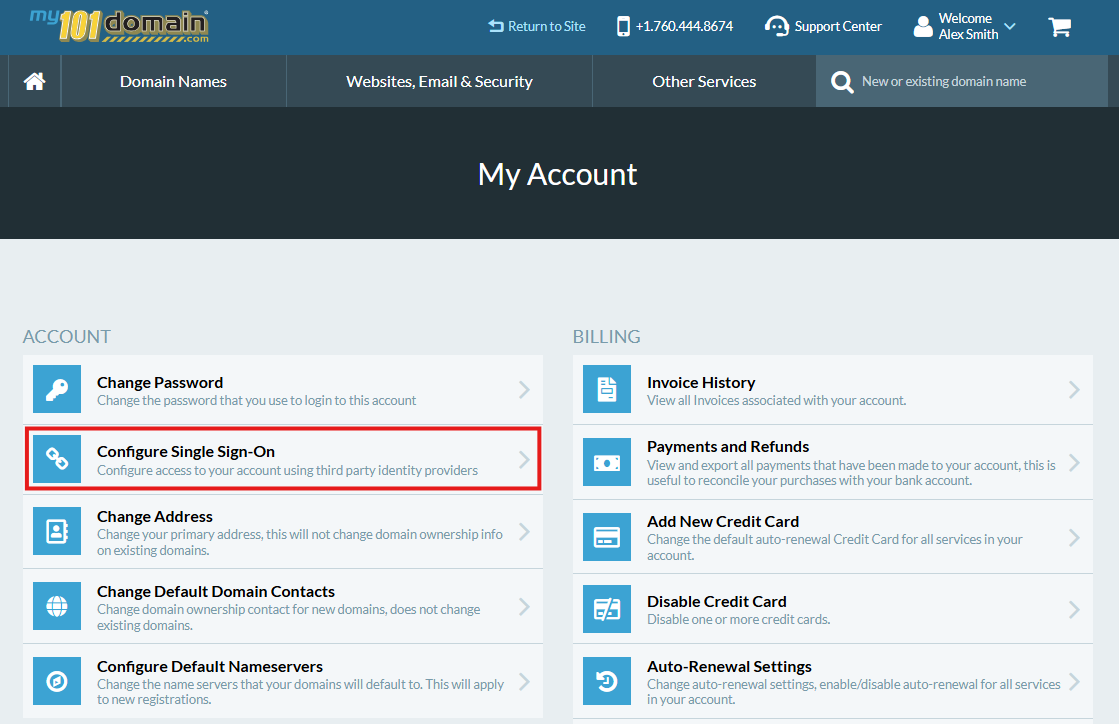
From the My Account menu, click on Configure Single Sign-On
-
Input your Security Question and click on Remove Connection to disconnect your account from the IdP.
-
This action will remove SSO access for the Primary Account User.
-
Sub-users who have not already been enabled for SSO will also lose access.
-
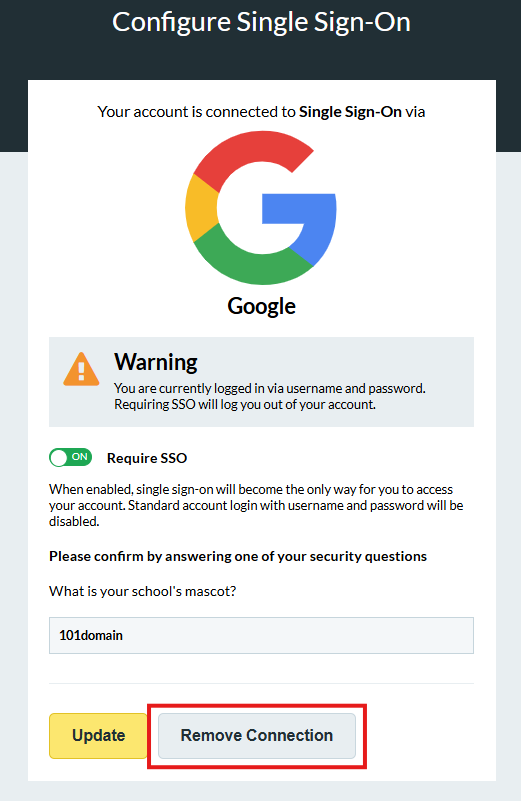
This will not affect sub-users who are already enabled for SSO; they will maintain uninterrupted access.
Steps to Disconnect SSO for Sub-Users
Each sub-user must be updated individually to remove SSO access. Follow these steps to disconnect sub-users from SSO.
-
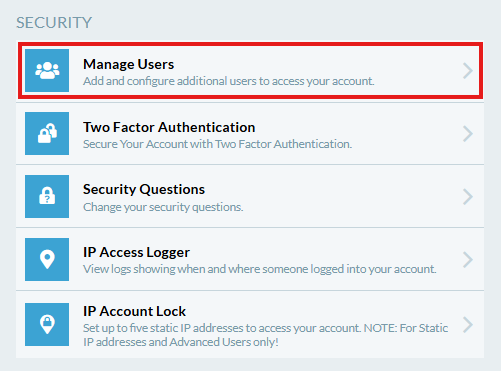
From the My Account menu, scroll down to the Security section and click on Manage Users.
-
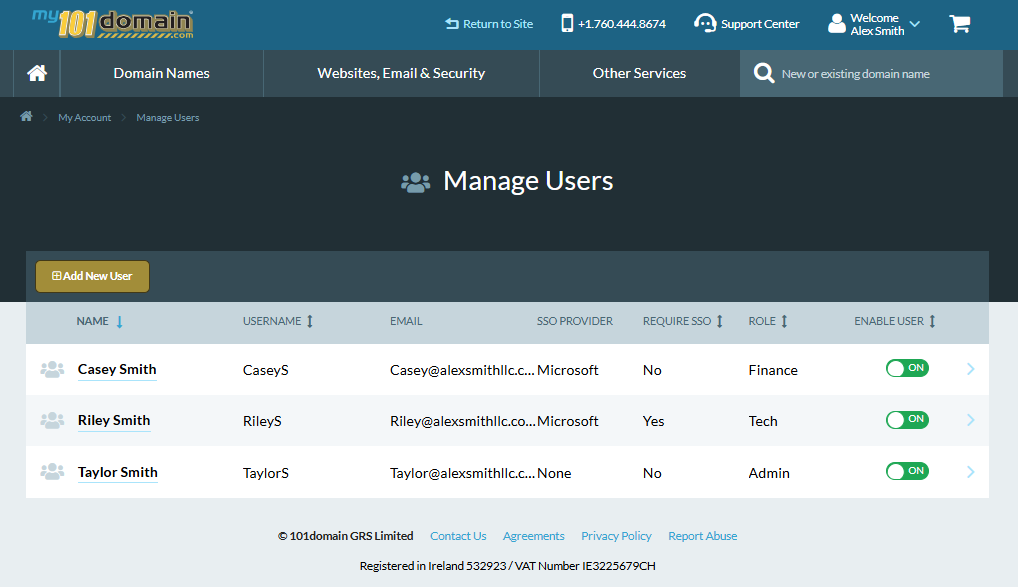
For each sub-user you wish to disconnect, click on the users name or the arrow on the right hand side of the users row record.
-
Clear the Single Sign-On Provider field and set to None. Then set Require SSO to Off.
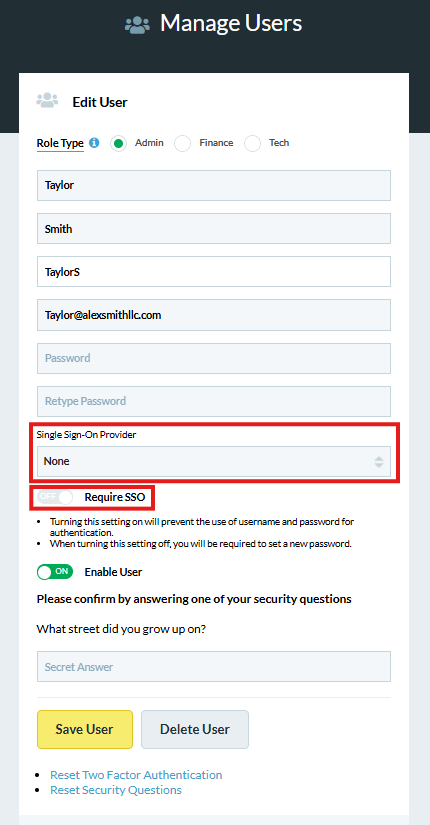
-
Repeat these steps for every sub-user you want to disconnect from SSO.
Disconnecting the Primary Account User from SSO does not automatically disconnect sub-users.
Related Articles