
This article explains how enabling the Require SSO (Single Sign-On) setting for sub-users in your 101domain account changes their login experience.
When the Require SSO setting is active, sub-users must use your organization’s identity provider (IdP) to sign in, eliminating the need to manage usernames and passwords. This helps streamline access and improve account security.
What Happens When Require SSO Is Enabled or Disabled
When Require SSO is enabled:
-
The sub-user can only log in using SSO via your organization’s IdP.
-
Username and password fields are disabled and cannot be changed.
-
If you need to modify a sub-user’s username or password, you must first disable the ‘Require SSO’ setting for that user.
When Require SSO is disabled:
-
The sub-user can log in with a username and password.
-
You can assign a new password for the user, or the sub-user can use the password reset process.
If you disable Require SSO for the Primary Account Owner, you will be logged out and must use the password reset option to set a new password. If you do not have access to the email account to reset the password, follow our Account Recovery Process.
Follow the process below to ensure a secure and seamless login experience for your team.
Steps for Enabling Sub-User accounts with SSO
-
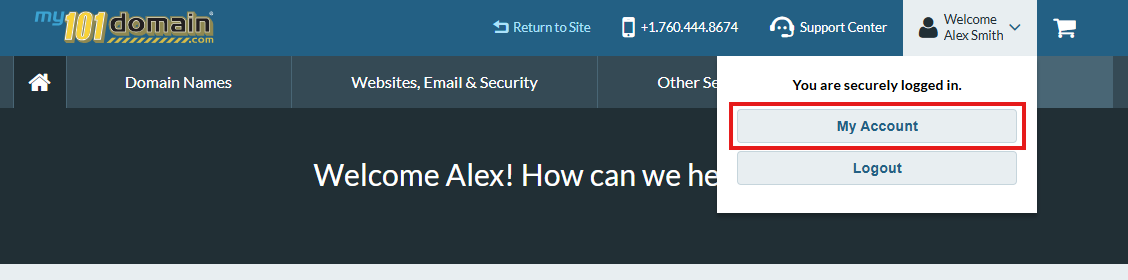
Navigate to the Welcome dropdown menu on the top right hand side and click on My Account .
-
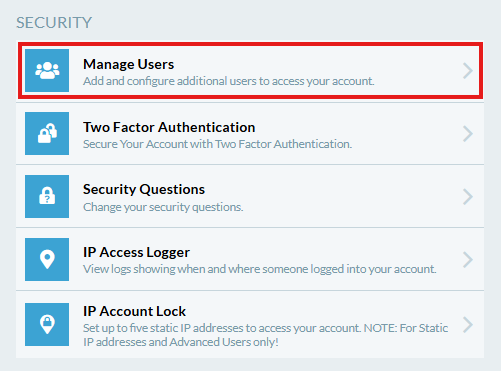
In My Account, scroll down to Security and click on Manage Users.
-
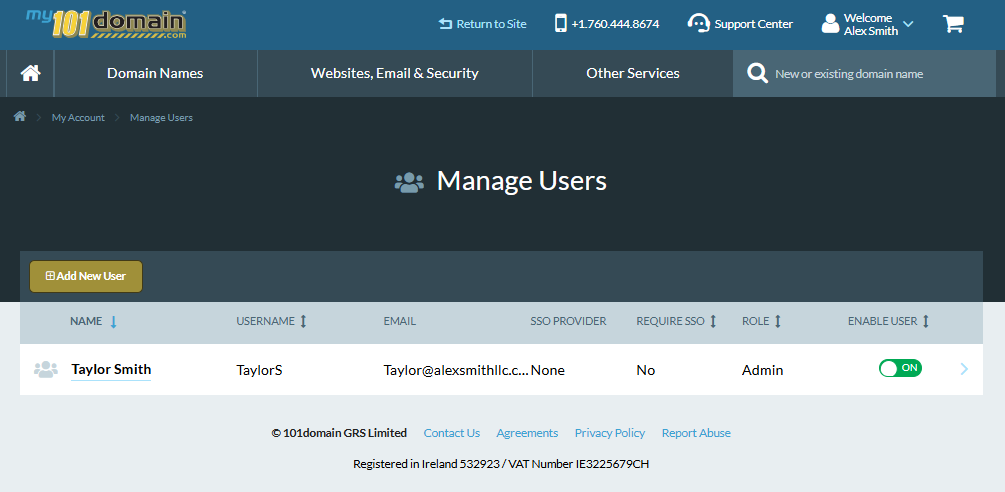
Select the sub-user you want to modify. You can either:
-
Click on the sub-users name; or
-
Click on the arrow on the right hand side of the row record.
-
-
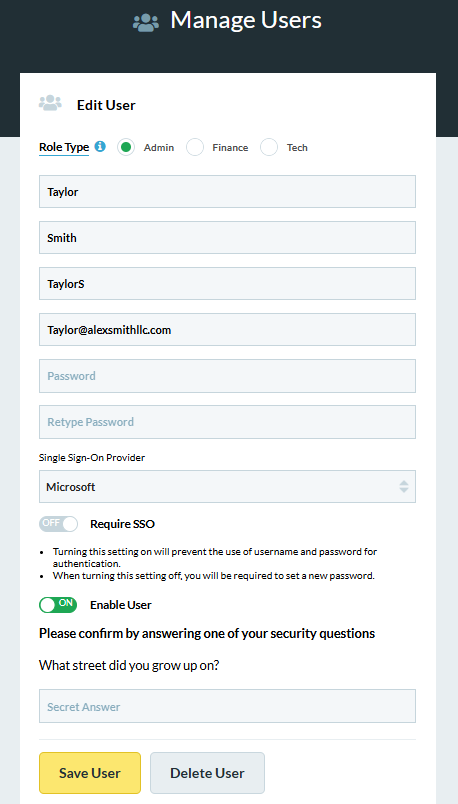
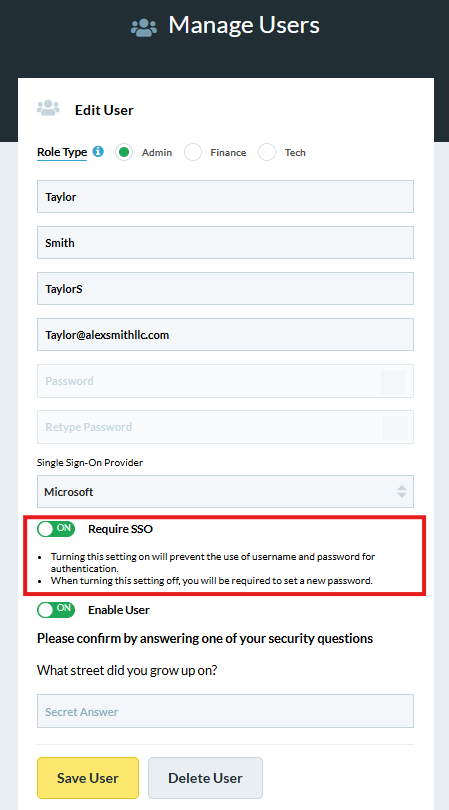
On the Edit User configuration page, toggle the Require SSO option to On.
The Single Sign-On Provider should be set to your organizations chosen IdP and should not display the default option of ‘None’.
-
Enter your Secret Answer and click on Save User.
If Require SSO is disabled, the sub-user will need to login with the username and password. If they do not remember their password, direct them to the password reset process.