
After your organization's Primary User has configured OneLogin SSO for your 101domain account, you can use this guide to learn how to sign in quickly and securely with OneLogin.
Remember, sub-users must be explicitly enabled by the Primary User to utilize OneLogin SSO.
To sign in to the 101domain account with OneLogin SSO:
-
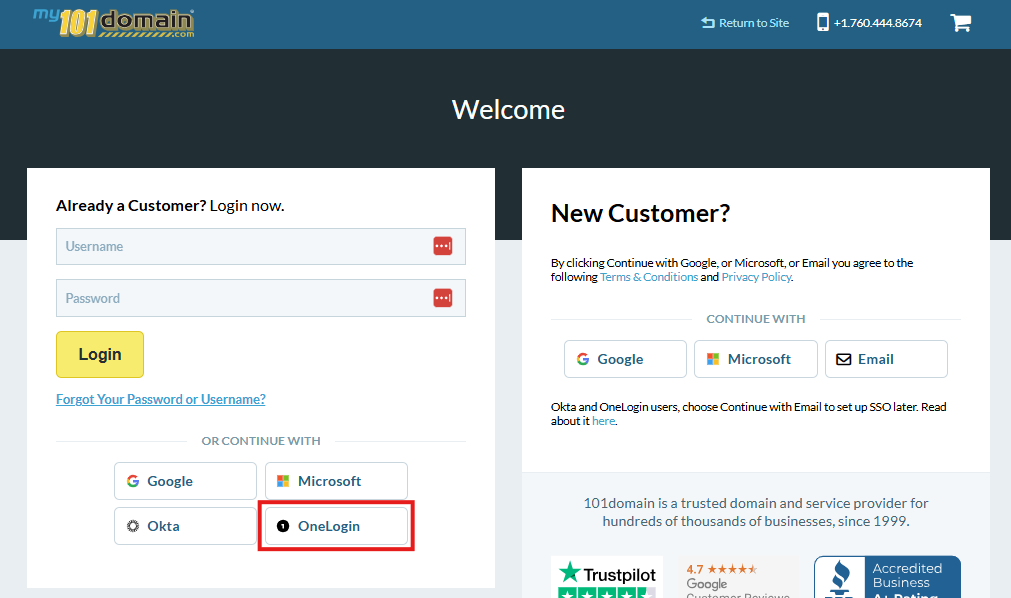
Login in to the 101domain account.
-
Select the OneLogin button.
-
Enter your OneLogin username and click on Continue.
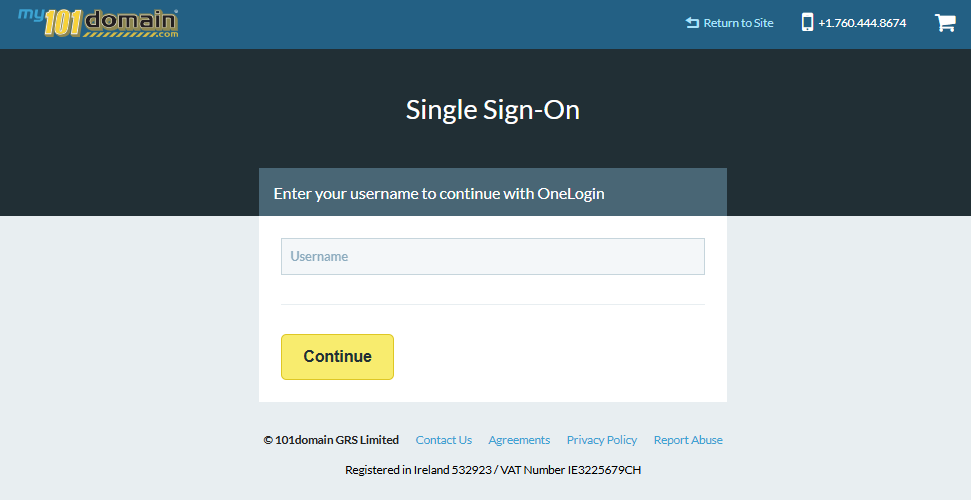
You should now be signed in with OneLogin SSO.
If you a are sub-user and are experiencing issues logging in, please check with your organizations Primary User to ensure sub-users have been enabled for OneLogin SSO. For more information on enabling sub-users, visit our article Managing User Access and Enforcement.
Important Notes
-
Each user must be enabled in the 101domain account prior to logging in with OneLogin SSO.
-
The Primary Account owner can allow each user, including themselves, to log in with:
-
OneLogin SSO only, OR
-
either OneLogin SSO or username and password.
-