
To ensure platform security and optimal performance, 101domain enforces a limit of 10 active API keys per account. If you receive an error message when attempting to generate a new credential, it is likely because you have reached this maximum threshold.
How to Resolve the Limit Error
If you need a new key but have already reached the limit, you have two primary options:
Option 1: Audit and Remove Unused Keys
-
Navigate to your 101domain Account.
-
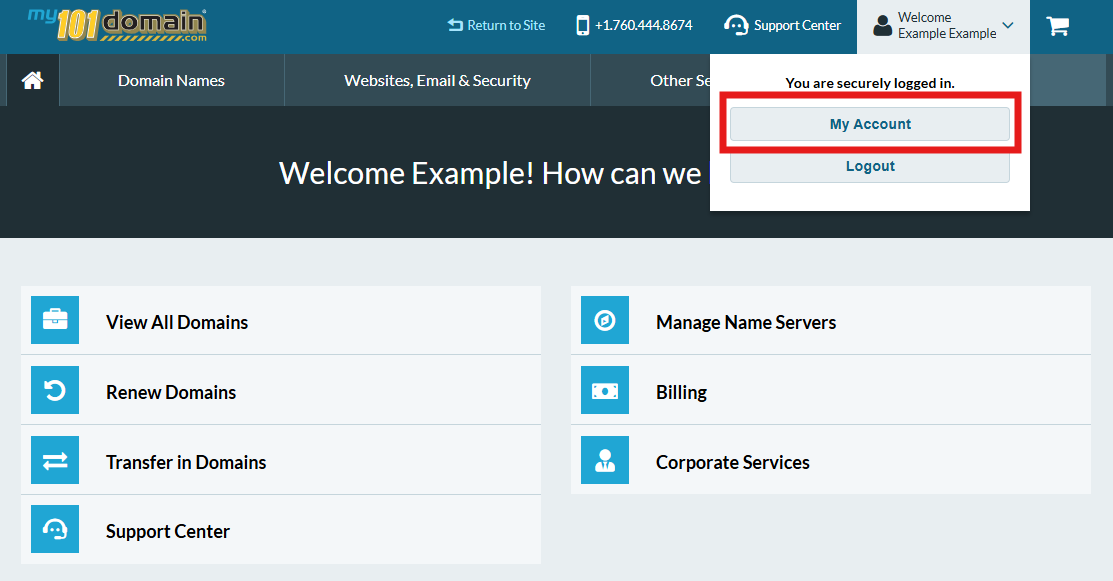
Navigate to My Account (top-right dropdown) > My Account.
-
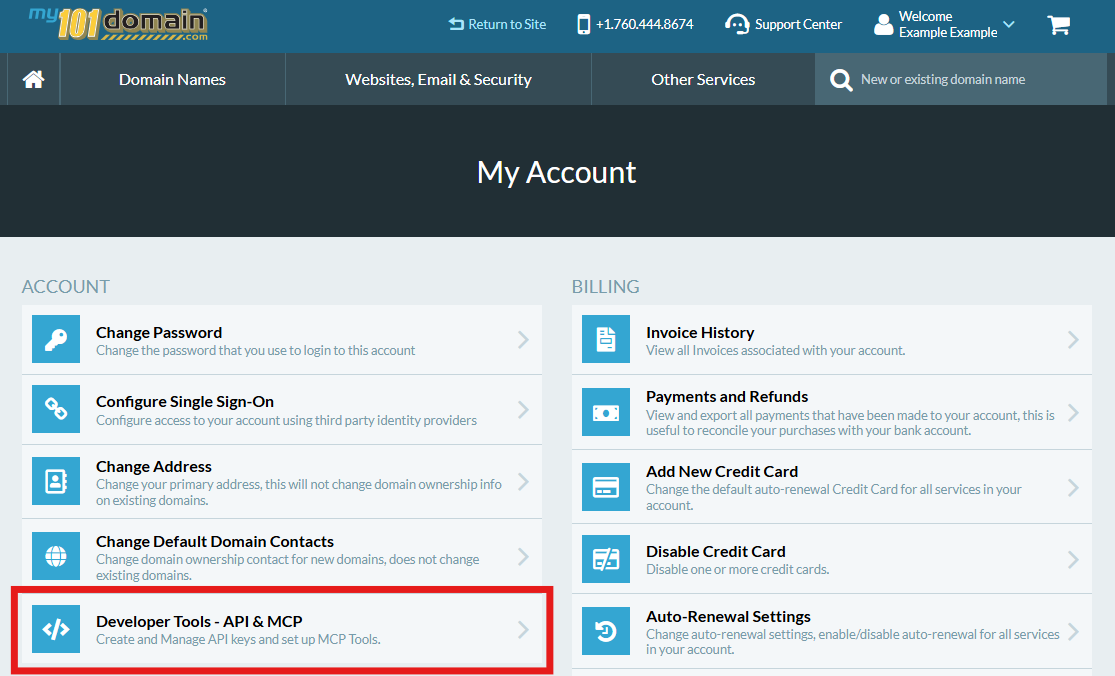
Click on Developer Tools - API & MCP.
-
Scroll down and review your existing keys. If any are associated with old projects or no longer in use, select Revoke. This will immediately free up a slot for a new key.
Option 2: Request a Limit Increase
-
If your infrastructure requires more than 10 unique keys (for example, managing multiple environments or high-scale integrations), please Contact Our Support Team for more information or Open A Support Ticket.
-
If you create a Support Ticket from your account, include a brief description of your use case so our engineers can evaluate and approve a higher limit for your account.
Best Practices for Key Management
-
Label Your Keys: Always give your keys descriptive names such as, WHMCS-Production instead of Testing-Local. This will help to avoid deleting the wrong API key.
-
Track Expiration: Keep note of the expiration period you have set for you API key. This includes 7, 30, 90 days and 1 year. If your API key expires, you will lose access to your selected API endpoints.
-
Security Audit: Periodically review your active keys to ensure that only authorized applications have access to your account resources.