
From time to time, you may need to revoke an existing API key. For example, if a key is no longer needed, has been exposed, or you simply want to rotate your credentials as part of your regular security hygiene, you will need to Revoke your API Key.
This article walks you through how to safely revoke an API key from your 101domain account. If you’ve lost your key and need to both revoke and replace it, refer to I lost my API Key. How can I view it Again?.
Before you begin, make sure you have a 101domain account. If you don’t have one yet, see Setting Up A 101domain Account.
Why You Might Need to Revoke a Key
You should revoke (delete) an API key if:
-
You suspect it has been compromised or shared unintentionally
-
The integration or application using the key is being retired
-
You are rotating keys as part of a regular security policy
-
You want to reduce the number of active keys tied to your account
Revoking a key immediately blocks further use of that key for API access.
Steps to Revoke an API Key
Follow these steps to revoke an existing API key from your 101domain account.
-
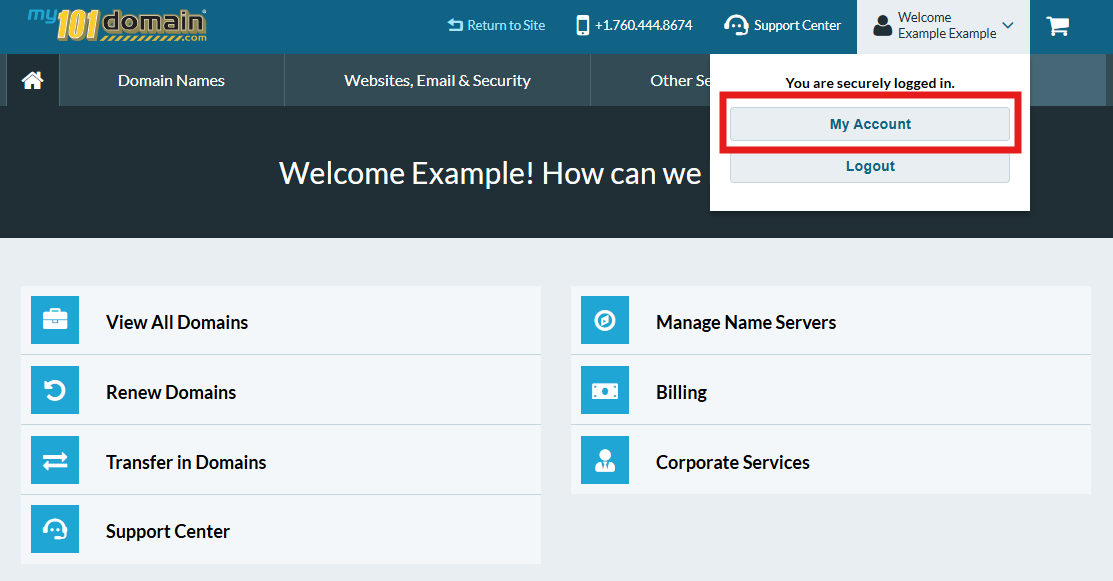
Log into your my.101domain.com account.
-
Navigate to My Account.
-
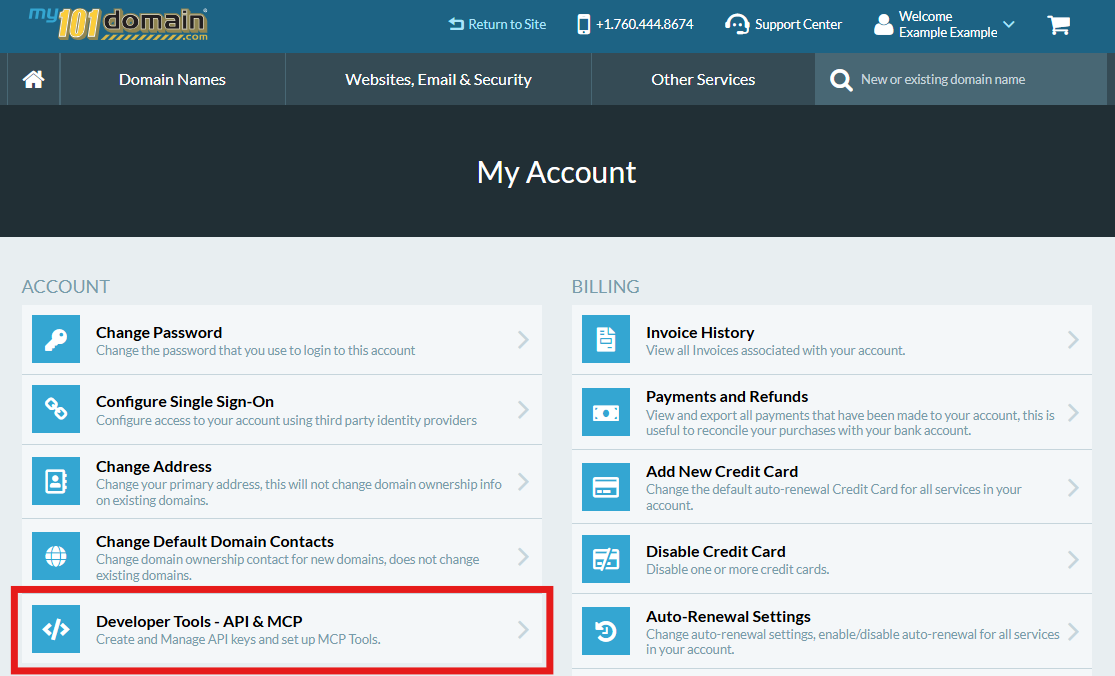
From the My Account menu, click on Developer Tools - API & MCP.
-
In the Developer Tools menu, scroll down the page to find the lost API key in the list and click on Revoke.
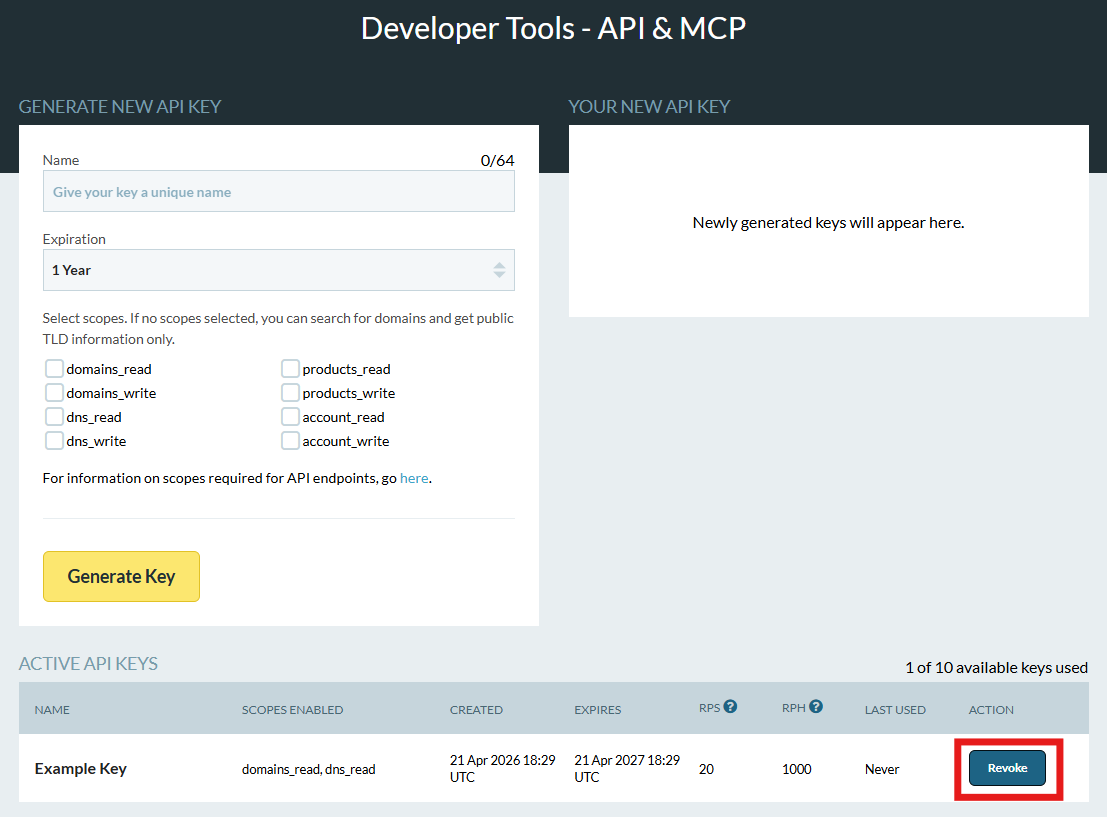
This will immediately stop any applications currently using that specific key from communicating with the API and will no longer appear in this list.
-
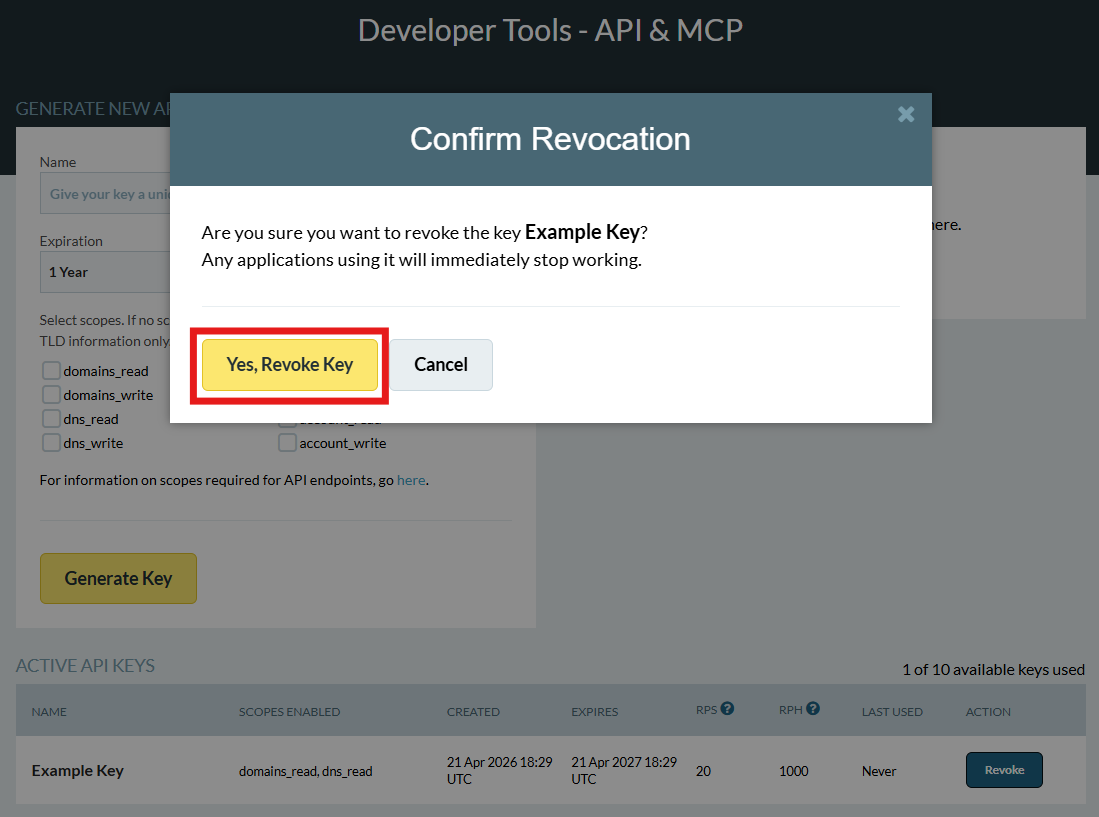
A pop-up will appear for you to confirm that you want to revoke your key. Click on Yes, Revoke Key if you want to proceed or Cancel if you want to retain this key.
After You Revoke a Key
If any applications or services were using the revoked key, you’ll need to:
-
Generate a new API key in the same Developer Tools - API & MCP section.
-
Update your applications with the new key.
-
Restart or redeploy your services so the new key takes effect.