
This guide will walk you through the setup process of adding domains to your OnDMARC account so you can configure your domain for email authentication and monitor email activity.
OnDMARC allows you to add up to 25 domains for reporting, but you can also add an unlimited number of parked domains.
Adding a Single Domain:
-
Log in to your OnDMARC account and select MY DOMAINS from the menu.
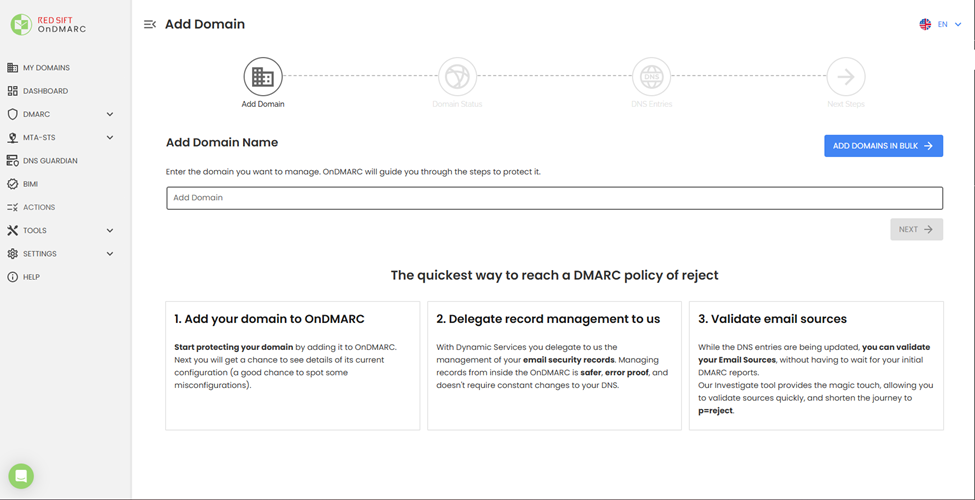
If this is the first domain you are adding to your account, you’ll be taken directly to the screen for the steps to add a domain. Otherwise, you’ll see a list of your existing domains with an “Add Domain” button at the top right.
-
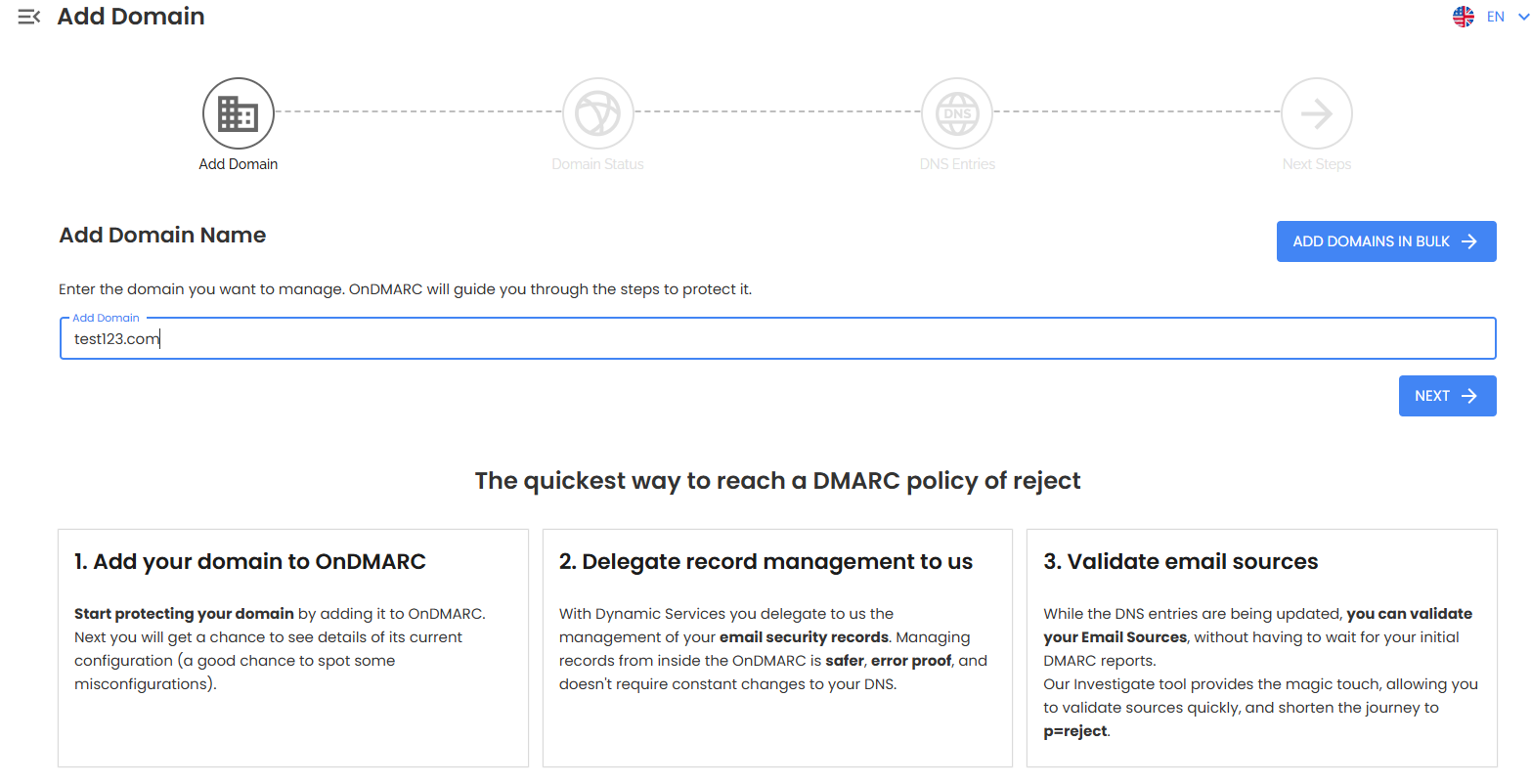
Enter the domain you wish to add and then click NEXT
-
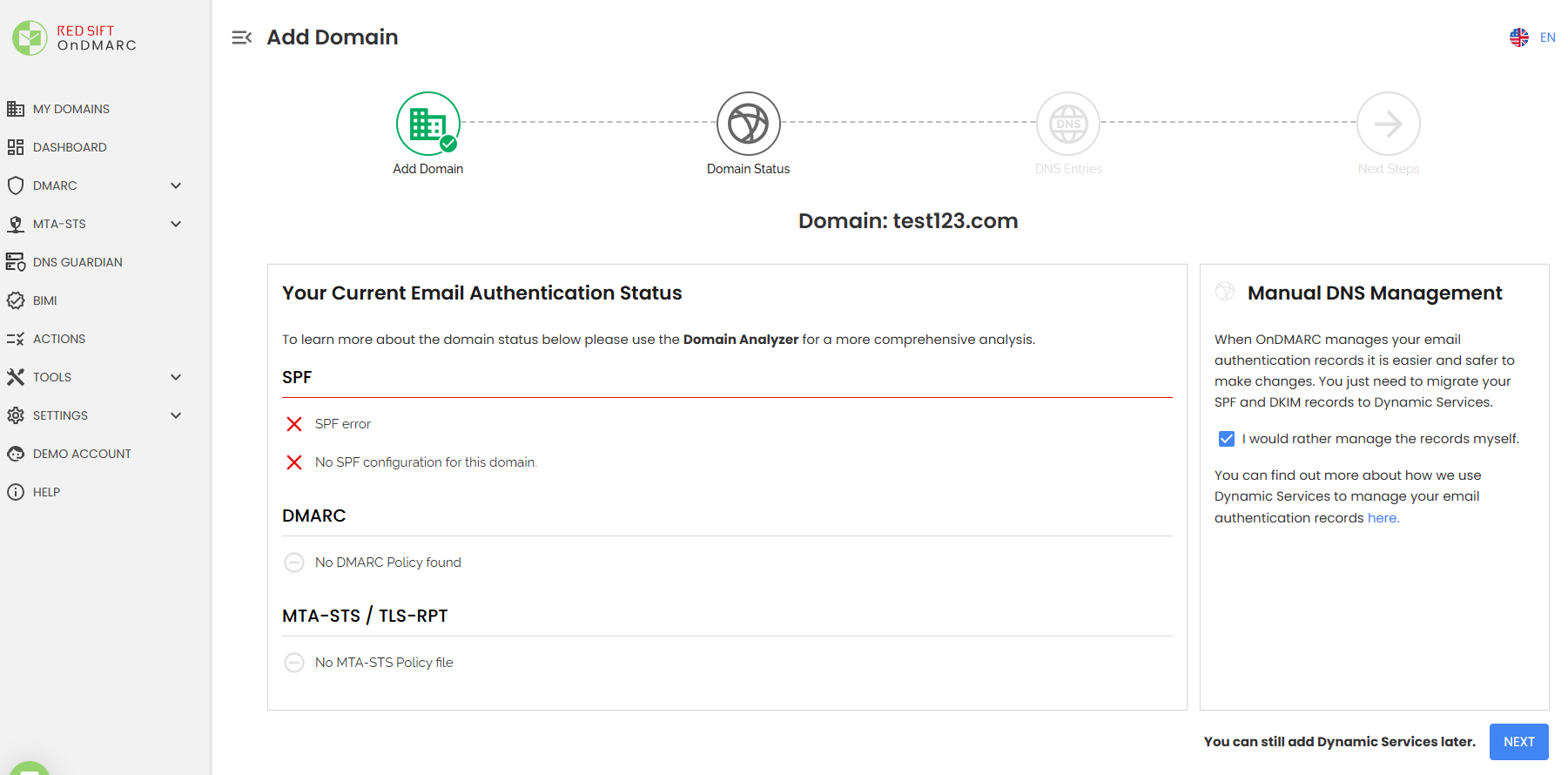
OnDMARC will display the domain’s current status and note any existing records. There is an option to configure DYNAMIC SERVICES on the right. You can elect to manage the records yourself and configure later if desired.
-
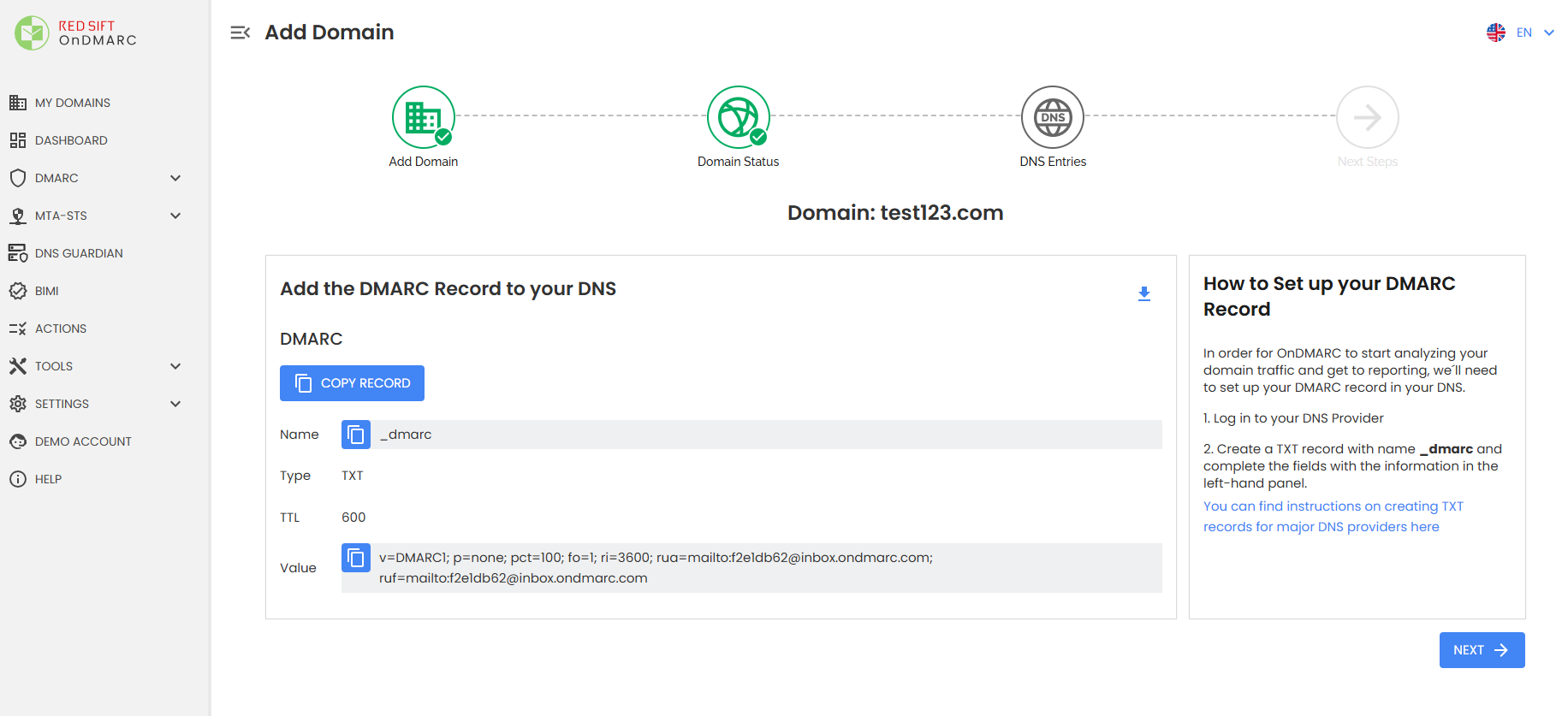
OnDMARC will provide the _dmarc record that you will need to publish in your DNS. The policy will default to p=none to ensure that no email activities are disrupted during the initial implementation of the domain you are adding.
-
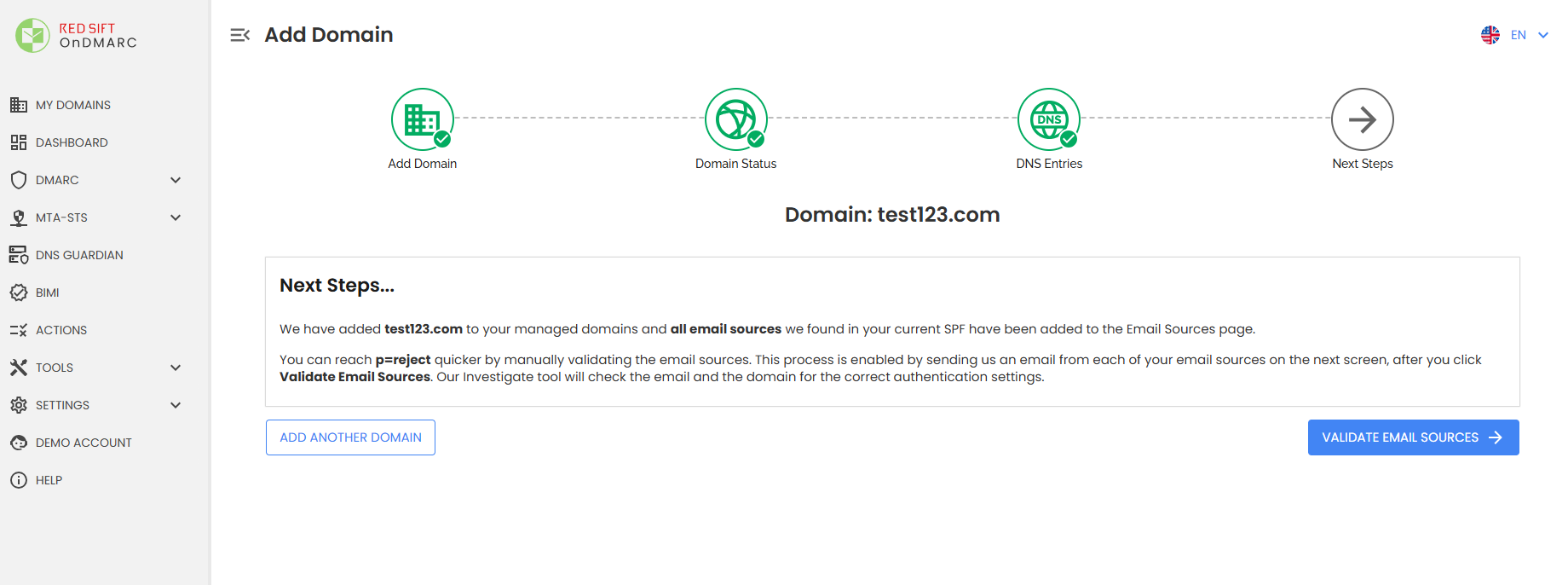
Once the domain is added, you’ll have the option to validate your email sources or add another domain in the “Next Steps” category.
-
You’ll be able to view your added domain by returning to the MY DOMAINS screen.

Adding Domains in Bulk:
This feature is ideal if you are adding a large number of domains in the panel, as it allows you to tag and add multiple domains at once.
-
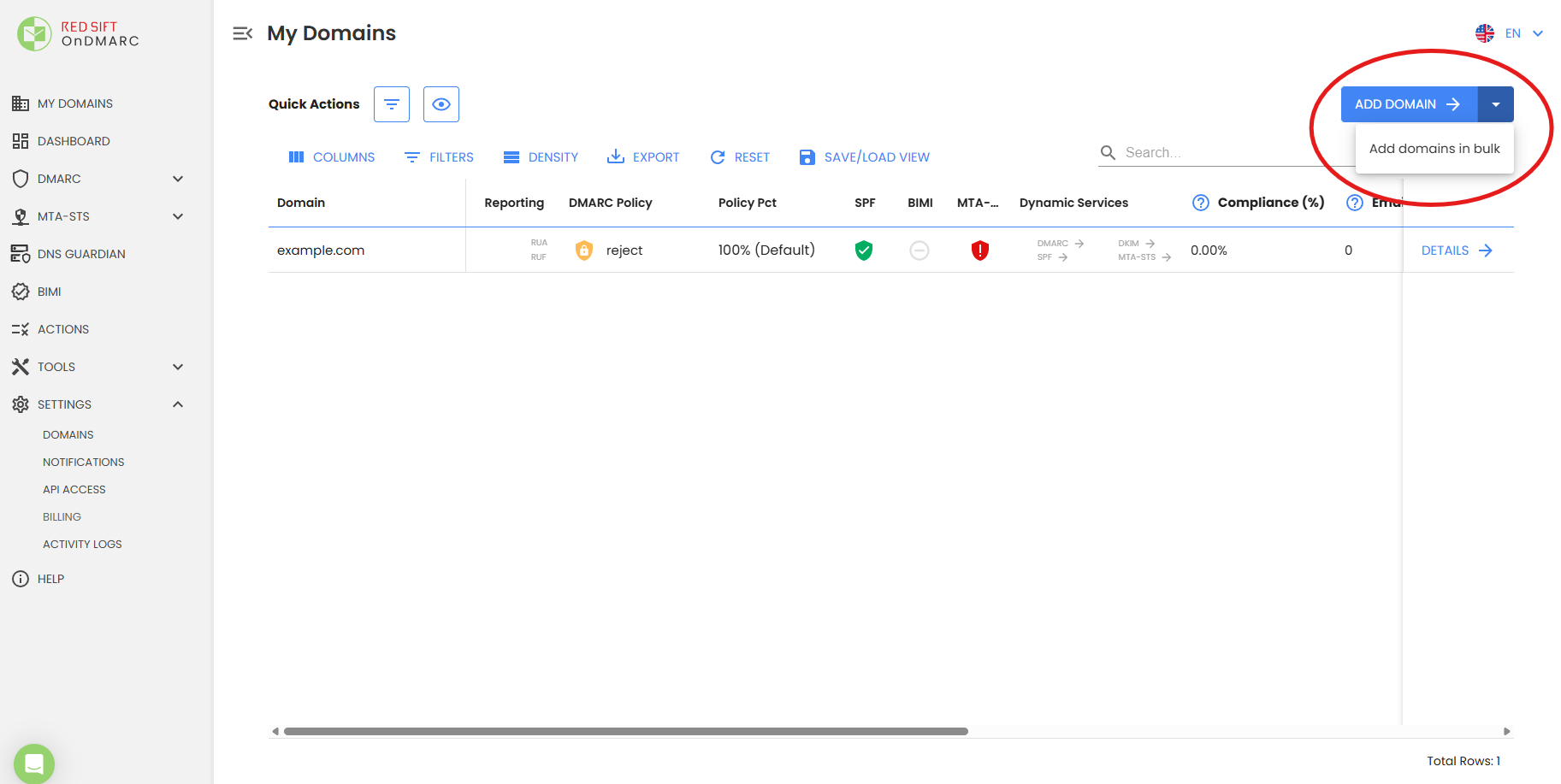
At MY DOMAINS, select the dropdown error on the button to ADD DOMAIN. This will display the option to Add domains in bulk.
-
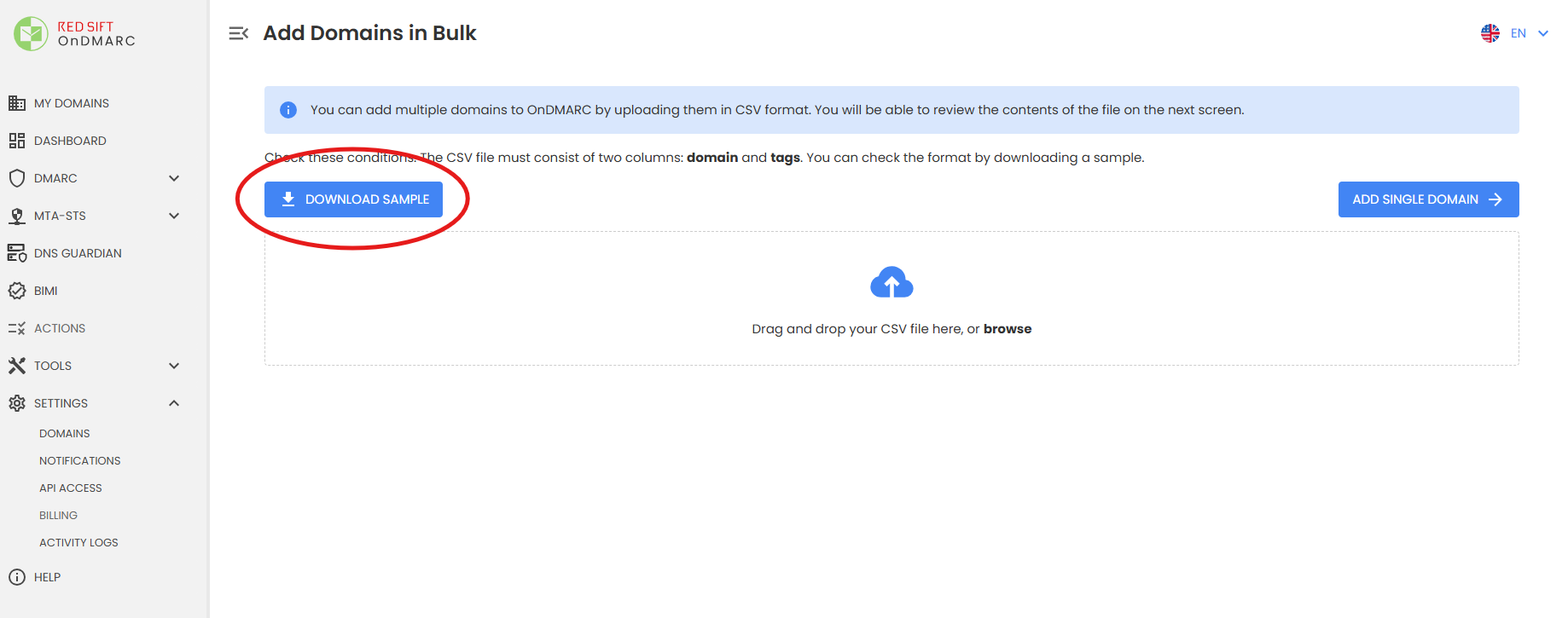
Download the sample CSV file and add the domains, as well as any desired tags that you would like to include with your domain.
Tags are essentially labels you can add to your domains to help categorize and filter the names at a later date. This feature is ideal if you are planning on managing a large number of domains in the OnDMARC panel.
-
Enter the domains you wish to add to the spreadsheet and upload the spreadsheet into OnDMARC. You will see the domains are verified as “valid” in the Domain Status field. Before selecting ADD DOMAINS, you can review and make any edits to domains and/or tags if needed.
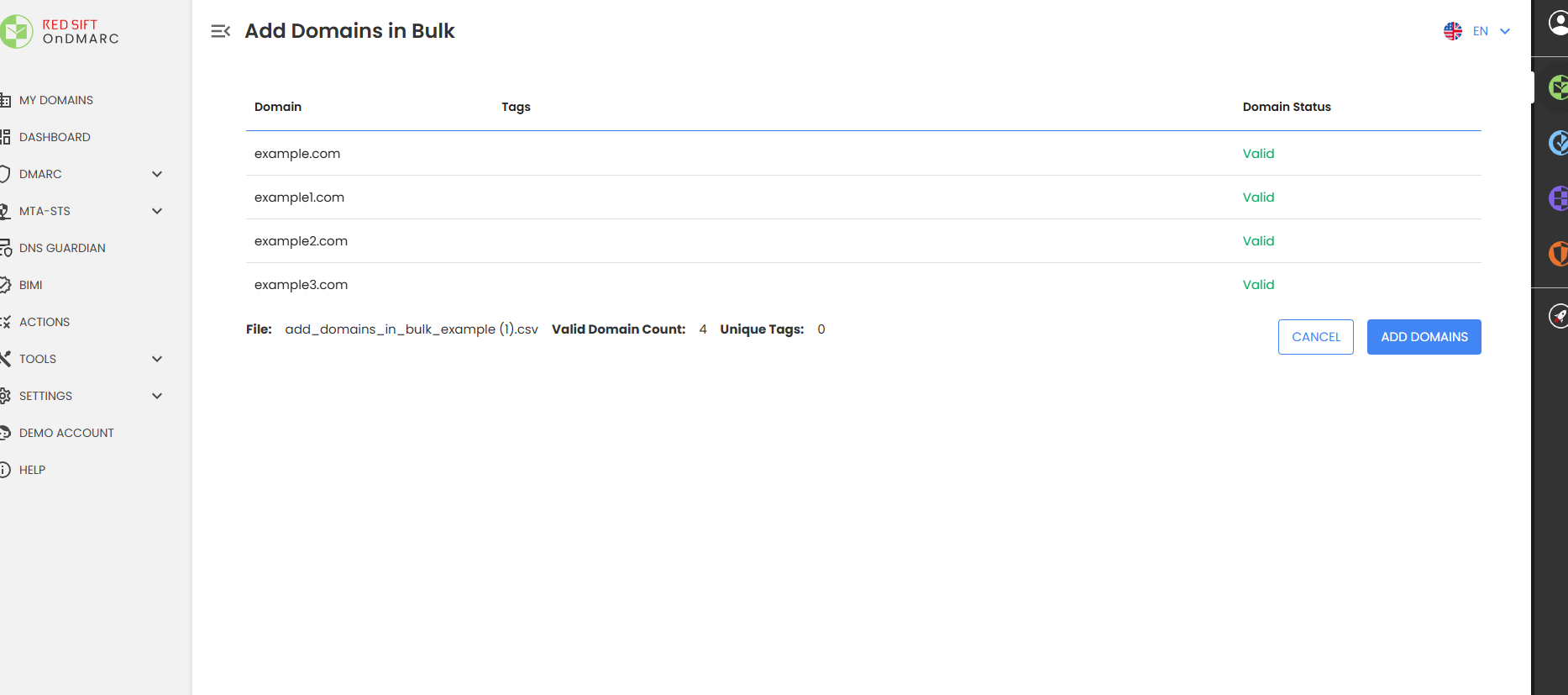
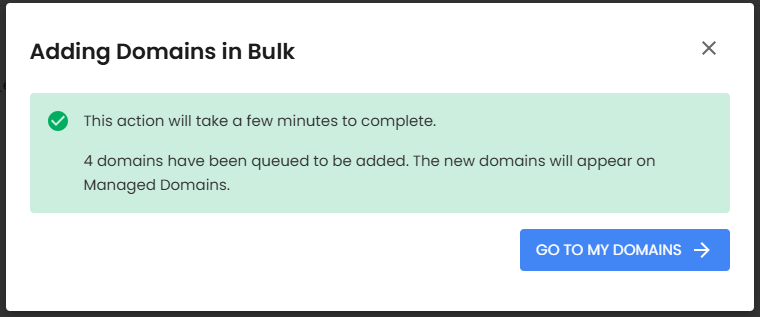
It will take a few moments for the domains to be added in Redsift.
-
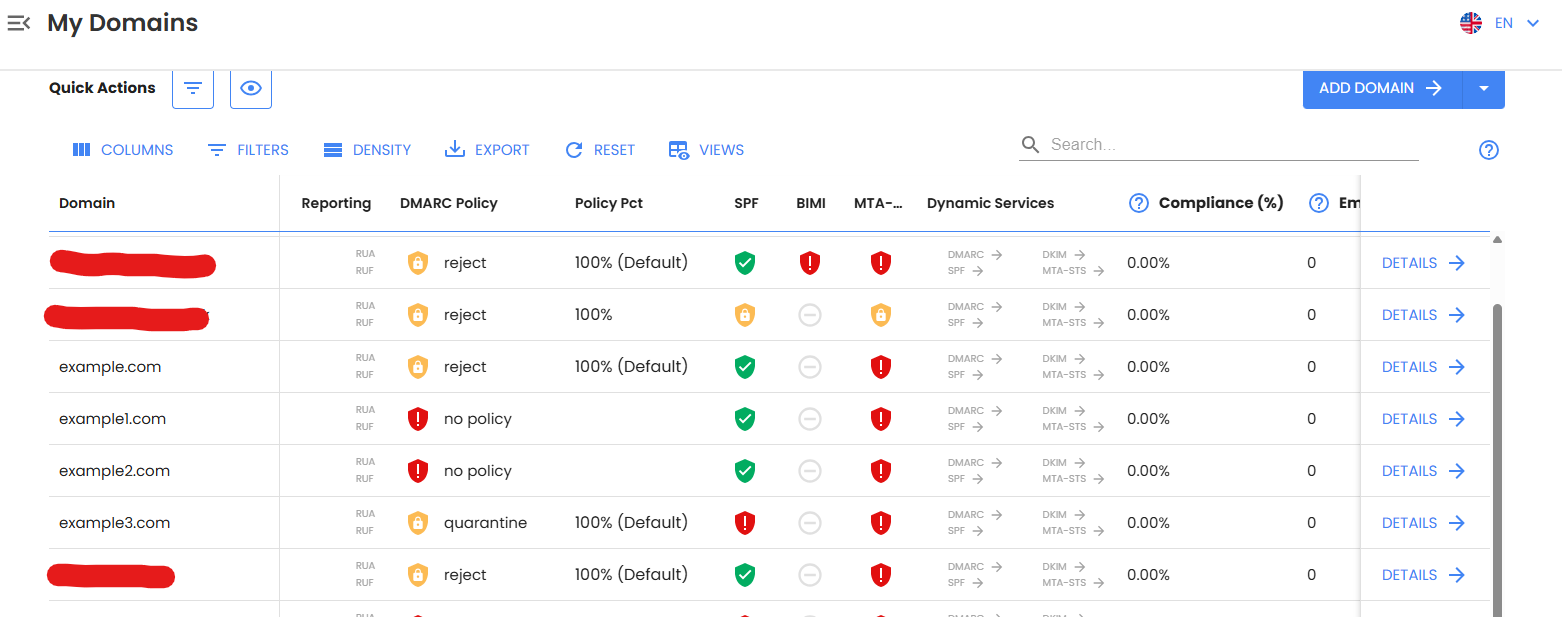
Once added, you will see them in the MY DOMAINS section
Need support for your OnDMARC service, please contact our friendly Support Team at 877.983.6624 (United States) or +1.760.444.8674 (International).